
To be able to open a file and read the data from a storage unit of a computer, such as a hard drive and able to save the data into the storage unit are important functions of a computer program. In fact, the ability to store, retrieve and modify data makes a computer a powerful tool in database management.
In this lesson, we will learn how to manage data that is stored as a text file. Visual Basic 2008 allows the user to create a text file, save the text file as well as read the text file. It is relatively easy to write code for the above purposes in VB2008 compared to VB6.
Reading and writing to a text file in VB2008 required the use of the StreamReader class and the StreamWriter class respectively. StreamReader is a tool that enables the streaming of data by moving it from one location to another so that it can be read by the user. For example, it allows the user to read a text file that is stored in a hard drive. On the other hand, the StreamWriter class is a tool that can write data input by the use to a storage device such as the hard drive.
In order to read a file from the hard disk or any storage device, we need to use the StreamReader class. To achieve that, first of all we need to include the following statement in the program code:
Imports System.IO
This line has to precede the whole program code as it is higher in hierarchy than the StreamReader Class. In Fact, this is the concept of object oriented programming where StreamReader is part of the namespace System.IO . It has to be put on top of the whole program(i.e. above the Public Class Form 1 statement). The word import means we import the namesapce System.IO into the program. Once we have done that , we can declare a variable of the streamReader data type with the following statement:
Dim FileReader As StreamReader
If we don't include the
Imports System.IO
we have to use the following statement
Dim FileReader As IO.StreamReader
each time we want to use the StreamReader class.
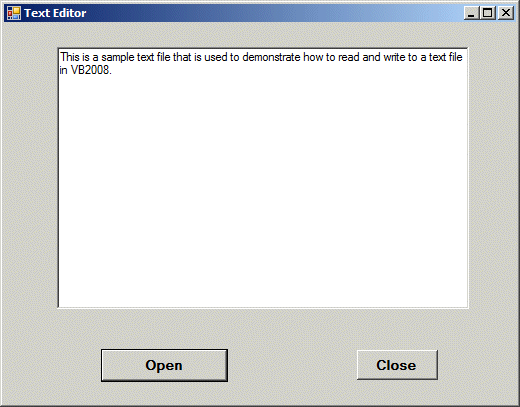
Now, start a new project and name it in whatever name you wish. Now, insert the OpenFileDialog control into the form because we will use it to read the file from the storage device. The default name of the OpenFileDialog control is OpenFileDialog1, you can use this name or you can rename it with a more meaningful name. The OpenFileDialog control will return a DialogResult value which can determine whether the user clicks the OK button or Cancel button . We will also insert a command button and change its displayed text to 'Open'. It will be used by the user to open and read a certain text file. The following statement will accomplish the task above.
 Dim results As DialogResult
  results = OpenFileDialog1.ShowDialog
 If results = DialogResult.OK Then
 'Code to be executed if OK button was clicked
 Else
'Code to be	executed if Cancel button was clicked
 End If
Next, we insert a textbox and set its Multiline property to true. It is used for displaying the text from a text file. In order to read the text file, we need to create a new instant of the streamReader and connect it to a text file with the following statement:
FileReader = New StreamReader(OpenFileDialog1.FileName)
In addition, we need to use the ReadToEnd method to read the entire text of a text file. The syntax is:
TextBox1.Text = FileReader.ReadToEnd()
Lastly, we need to close the file by using the Close() method. The entire code is shown in the box below:
 Imports System.IO
 Public Class Form1
 Private Sub BtnOpen_Click(ByVal sender As System.Object, ByVal e As System.EventArgs) Handles BtnOpen.Click
 Dim FileReader As StreamReader
 Dim results As	DialogResult
 results = OpenFileDialog1.ShowDialog
  If results = DialogResult.OK Then
   FileReader = New StreamReader(OpenFileDialog1.FileName)
   TextBox1.Text = FileReader.ReadToEnd()
   FileReader.Close()
  End If
  End Sub
  End Class


Writing a text file
means storing the text entered by the user via a textbox into a storage device
such as a hard drive. It also means saving the file. To accomplish this task, we
need to deploy the StreamWriter Class. You also need to insert the
SaveFileDialog control into the form as it is used to save the data into the
storage unit like a hard drive. The default bame for the SaveFileDialog control
is
SaveFileDialog1. The Code is basically the same as the code for reading
the file, you just change the StreamReader to StreamWriter, and
the method from ReadToEnd to Write. The code is shown in the
following table:
ImportsThe code
Public
Class Form1 Private Sub BtnSave_Click(ByVal sender As System.Object, ByVal e As System.EventArgs) Dim FileWriter As StreamWriter Dim results As DialogResultresults = SaveFileDialog1.ShowDialog
If results = DialogResult.OK ThenFileWriter =
New StreamWriter(SaveFileDialog1.FileName, False)FileWriter.Write(TextBox1.Text)
FileWriter.Close()
End If End Sub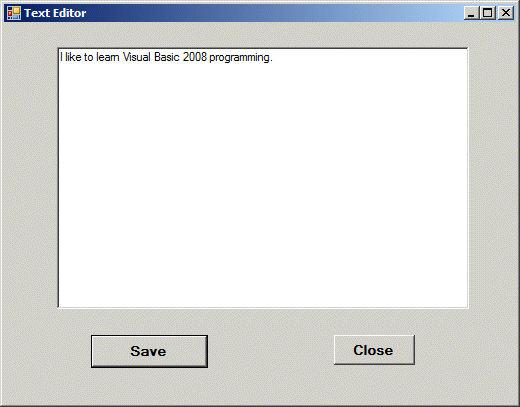
When you click the save button, the program will prompt you to key in a file name and the text will be save as a text file. Finally, you can combine the two programs together and create a text editor that can read and write text file, as shown in the diagram below.
Copyright©2008 Dr.Liew Voon Kiong. All rights reserved |Contact|Privacy Policy
