Working with PictureBox
The PictureBox is an important Visual Basic 2015 control for displaying images. In this lesson, you will learn how to load images into a PictureBox at design time, at runtime, and by letting the user browse for image files using an Open File Dialog.
PictureBox is useful for photo viewers, learning apps, games, presentations, and any VB program that needs to display graphics or image files.
Lesson Overview
7.1 Introduction
What is a PictureBox?
A PictureBox is a control in Visual Basic 2015 that is used to display images. In earlier lessons, you learned how to place controls on a form, including the PictureBox. In this lesson, the focus is on loading and displaying image files properly.
There are several ways to load an image into a PictureBox:
- Load the image at design time using the Properties window.
- Load the image at runtime using code.
- Let the user browse for an image using OpenFileDialog.
This flexibility makes PictureBox useful in many practical programs such as picture viewers, slideshows, product catalogs, and educational applications.
7.2 Design Time
Loading an Image at Design Time
The easiest way to load an image is at design time. First, insert a PictureBox on the form. Then set some useful properties:
- Set the form text to something like Picture Viewer.
- Set the PictureBox BorderStyle to FixedSingle.
- Set the background color to white.
- Optionally set the SizeMode so the image stretches to fit the box.
After that, go to the Image property in the Properties window and click the button on the right side to choose an image source.
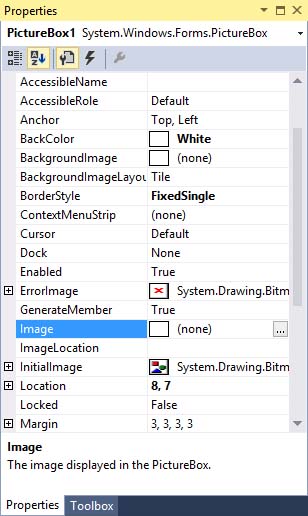
Figure 7.1: PictureBox Properties window
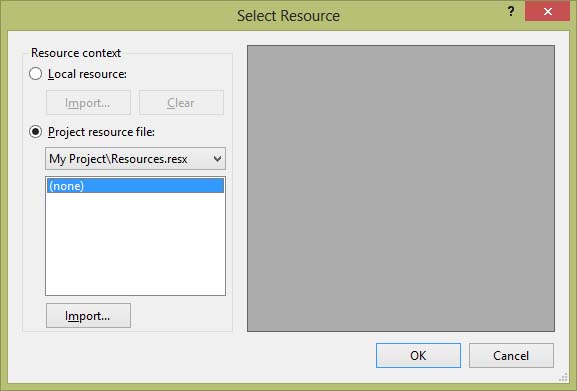
Figure 7.2: Select Source dialog
Choose Local resource, then click Import. This will open a standard file browsing dialog where you can search for image files on your computer.
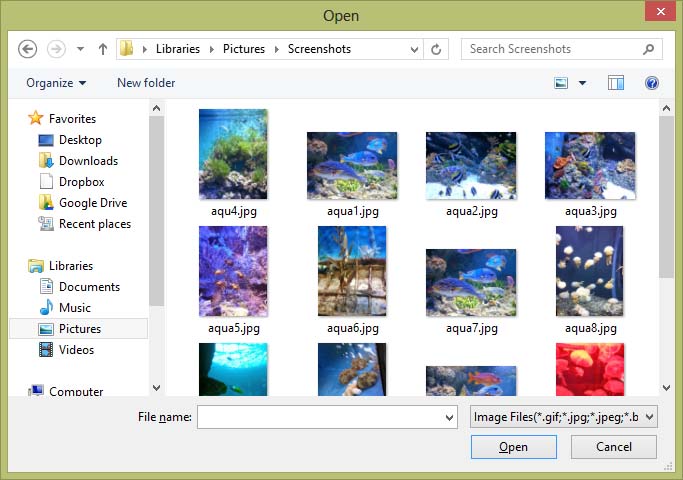
Figure 7.3: Browsing for image files in your local drive
Once you select an image and click Open, the image will be displayed in the PictureBox.
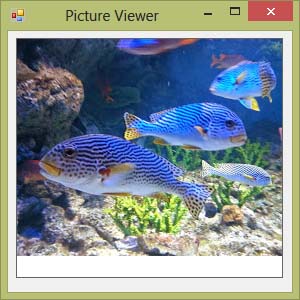
Figure 7.4: Image loaded into the PictureBox
7.3 Runtime
Loading an Image at Runtime
In Visual Basic 2015, you can also load an image with code while the program is running. This is done using the Image.FromFile(...) method.
Private Sub Form1_Load(sender As Object, e As EventArgs) Handles MyBase.Load
    PictureBox1.Image = Image.FromFile("C:\Users\Toshiba\Pictures\sporetrip2014\fish.jpg")
End Sub
This code tells the program to load the image from the specified file path when the form loads. You must know the full file path of the image before writing the code.
When you run the program, the selected image will appear in the PictureBox just like in Figure 7.4.
7.4 Better Method
Using OpenFileDialog to Browse for Images
A more flexible method is to let the user browse for image files while the program is running. This can be done by using the OpenFileDialog control.
First, add a button to the form and change its text to View. Then add the OpenFileDialog control to the form. This control is invisible at runtime, but it helps you display a file browser.
Rename the control to OFGSelectImage. Then set its Filter property so it shows common image types only:
JPEG Files|*.JPG|GIF Files|*.GIF|Windows Bitmaps|*.BMPYou should also delete the default filename in the properties window.

Figure 7.5: Properties window of OpenFileDialog
7.5 Code Example
Code for the View Button
Next, double-click the View button and type the following code:
Private Sub BtnView_Click(sender As Object, e As EventArgs) Handles Button1.Click
    If OFGSelectImage.ShowDialog = Windows.Forms.DialogResult.OK Then
        PictureBox1.Image = Image.FromFile(OFGSelectImage.FileName)
    End If
End Sub
Here is what the code does:
- ShowDialog opens the file selection dialog.
- If the user clicks OK, the program continues.
- OFGSelectImage.FileName stores the selected file path.
- Image.FromFile(...) loads the selected image into the PictureBox.
Figure 7.6: The runtime file dialog displaying available image files
Figure 7.7: Selected image displayed in the PictureBox
7.6 Important Reminder
Why This Lesson Matters
The PictureBox is more than just an image container. Combined with OpenFileDialog and code, it allows you to create practical programs such as image viewers, product displays, school projects, and multimedia applications.
Recommended Upgrade
Build on This Foundation
Continue to VB2026
After learning the basics of PictureBox in VB2015, move to the newest VB2026 tutorial for a more modern VB.NET learning path.

Visual Basic Programming
Use this Top Release book to reinforce your tutorial learning with a more structured guide.
Practice
Exercise Questions
- What is the difference between loading an image at design time and loading it at runtime?
- Write a short VB2015 example that loads an image into a PictureBox using Image.FromFile(...).
- Why is OpenFileDialog more flexible than using a fixed file path in your code?