
Typically everyone navigates the World Wide Web using Internet Explorer, Google Chrome, Safari, FireFox, Opera and more. However, isn't it cool that if you can create your very own web browser that you can customize to your own taste? Yes, you can do that in Visual Basic 2010, and pretty easy too. In this lesson, we will show you how to create a simple web browser and get it running in a few minutes.
First, start a new project in Visual Basic 2010 and name it with any name you like. Here we use the name Web Browser. Change the name of Form1 to MyWebBrowser and the text property to Web Browser and set its size property to 640,480.
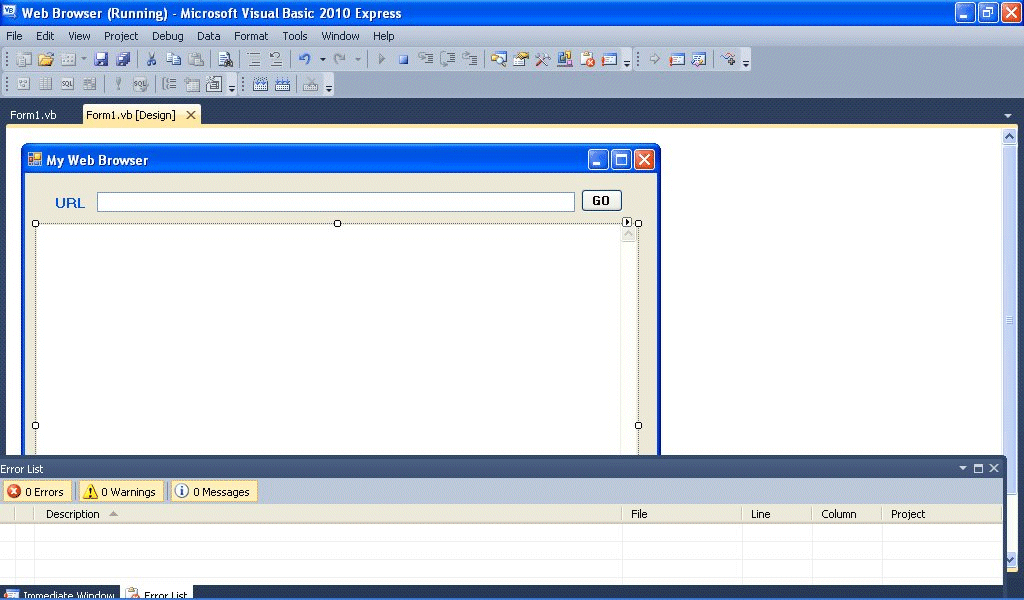
Next, you need to add an engine so that your web browser can connect to the Internet. This engine is the WebBrowser control, located on the Toolbox on the left side. Set its size property to 600,400. Next, drag a text box and place it at the top of the WebBrowser control, this serves as the address bar where the user can enter the URL. Lastly, place a command button beside the text box and label it as Go and change its name to Go as well.
The design interface is shown in Figure 19.1
The code for the web browser is surprisingly simple, it is only a single line code! Double click on the Go button and key in the following code:
Public Class Form1

Private Sub Go_Click(ByVal sender As System.Object, ByVal e As System.EventArgs) Handles Button1.Click
 MyWebBrowser.Navigate(TextBox1.Text)
End Sub

End Class
Now run the program , type in any URL and click the Go button. You will be able to browse any web page you want.

Copyright©2008 Dr.Liew Voon Kiong. All rights reserved |Contact|Privacy Policy
