
The Controls in Visual Basic 2010 are objects that can be placed on the form to perform various tasks. To view the controls in VB2010, click on the Toolbox tab to bring up the common controls Toolbox as shown in Figure 2.1. The controls are categorized into Common Controls, Containers, Menus, Toolbars, Data, Components, Printings and Dialogs. At the moment, we will focus on the common controls. Some of the most used common controls are Button, Label, ComboBox, ListBox, PictureBox, TextBox etc.
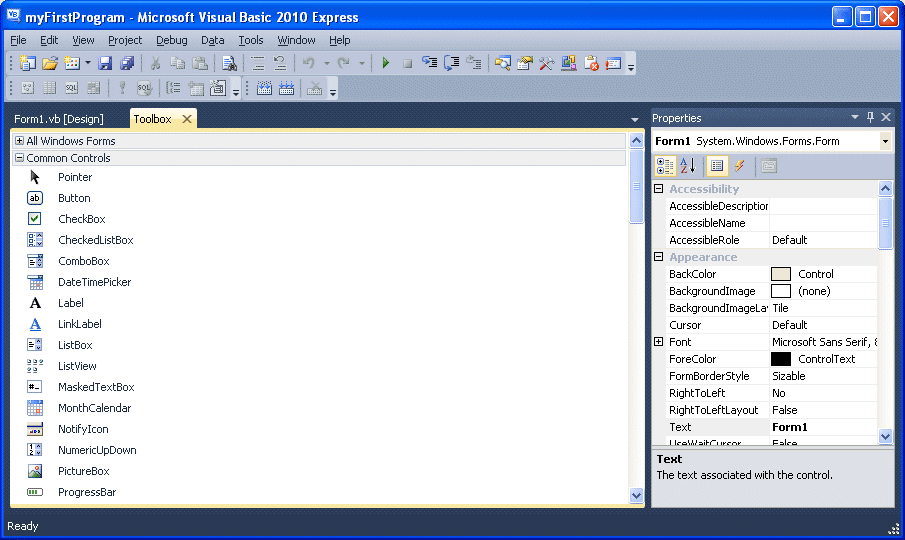
To insert a control into your form, you just need to drag the control and drop it onto the form. You can reposition and resize it as you like. Lets examine a few programs that made use of Button, Label, TextBox , ListBox and PictureBox . You don't have to worry so much about the code because I will explain the program syntax as you progress to laterlessons.
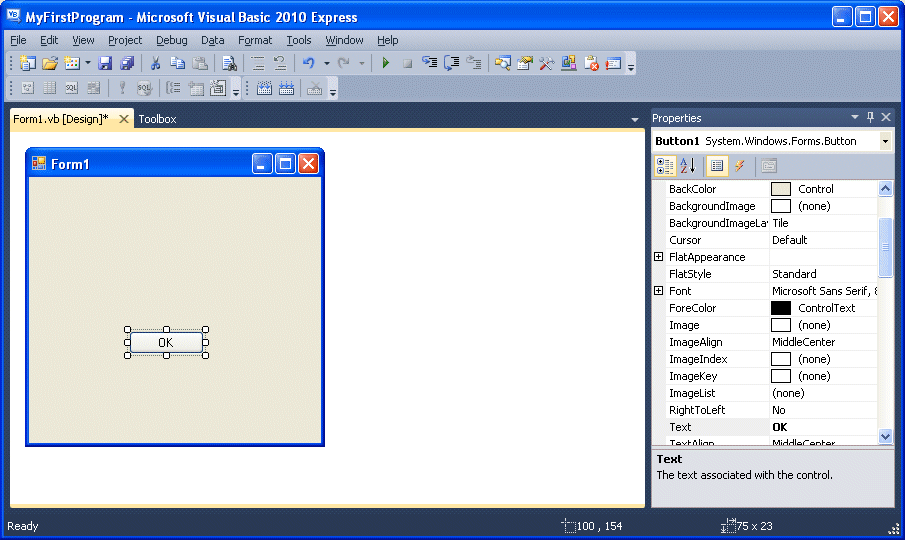
To create your first program, drag the button control into the form, and change its default Text Button1 to OK in the properties window, the word OK will appear on the button in the form, as shown in Figure 2.2:
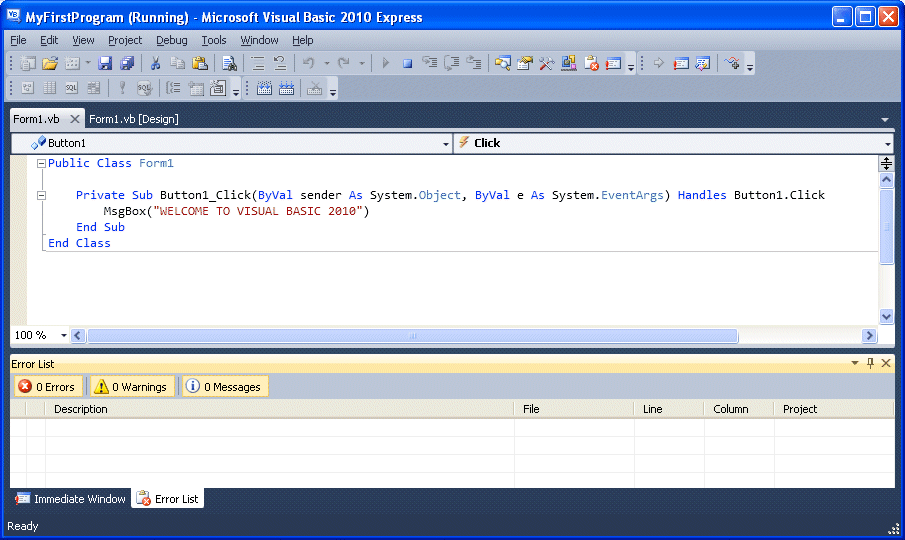
Next, click on the OK button and the code window appears. Enter the code as shown in Figure 2.3:
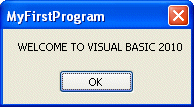
When you run the the program and click on the OK button, a dialog box will appear and display the "WELCOME TO VISUAL BASIC 2010" message,as shown in Figure 2.4:
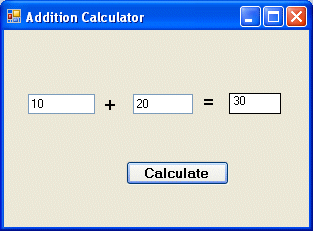
Next I will show you how to create a simple calculator that adds two numbers using the TextBox control. In this program, you insert two textboxes , three labels and one button. The two textboxes are for the users to enter two numbers, one label is to display the addition operator and the other label is to display the equal sign. The last label is to display the answer. Now change the label on the button to Calculate,then click on this button and enter the following code:
Private Sub Button1_Click(ByVal sender As System.Object, ByVal e As System.EventArgs) Handles Button1.Click

Dim num1, num2, product As Single
 num1 = TextBox1.Text
 num2 = TextBox2.Text
 product = num1 + num2
 Label1.Text = product

End Sub
When you run the program and enter two numbers, pressing the calculate button can let the progam performs addition of the two numbers, as shown in Figure 2.5.
Copyright©2008 Dr.Liew Voon Kiong. All rights reserved |Contact|Privacy Policy
