Introduction to Visual Basic 2026
A comprehensive overview of Visual Basic 2026 (VB 17.13) in the .NET ecosystem, the Visual Studio 2026 IDE, and creating your very first Windows Forms application.

Advanced Visual Basic 2026 Programming, Volume 1
Professional VB.NET Engineering, Object Modelling, Generics, Events, Design Patterns, and LINQ
Continue beyond the fundamentals with a professional guide to building maintainable VB.NET applications. Volume 1 develops stronger object models, reusable generic components, event-driven systems, practical design patterns, and expressive LINQ-based data processing.
1.1 What is Visual Basic 2026?
Microsoft released Visual Studio 2026 as the next major evolution of its flagship IDE. With it comes Visual Basic 17.13 — the version we brand as Visual Basic 2026 throughout this tutorial series, following the same convention Microsoft uses (e.g., Visual Basic 17.0 shipped with Visual Studio 2022).
Visual Basic has been part of the Microsoft ecosystem for decades. Starting as a rapid-application-development tool in the early 1990s, it evolved into the fully object-oriented VB.NET platform running on the modern cross-platform .NET runtime. Today, VB 2026 targets .NET 10 (LTS) and supports Windows Forms desktop applications, class libraries, and console applications.
Visual Studio 2026 supports multiple languages on a shared platform. Alongside Visual Basic, developers can use:
- C# — the primary .NET language, closely related to VB.NET
- F# — functional-first language on .NET
- C++ — for native and mixed-mode development
- JavaScript / TypeScript — for web front-end projects
- Python — for data science and scripting
According to Microsoft Learn, the current version is Visual Basic 17.13 / Visual Studio 2026. This is the version covered throughout this tutorial and is the one you should download today.
New Language Features in Visual Basic 17.13
Visual Basic 17.13 introduces two important compiler-level enhancements over the previous VB 17.0 (Visual Studio 2022) release:
🔒 Unmanaged Generic Constraint
VB 17.13 now recognises the unmanaged generic type constraint, allowing you to write high-performance generic methods that work only with value types that contain no managed references — essential for interop and unsafe memory scenarios.
⚡ OverloadResolutionPriorityAttribute
The compiler now honours System.Runtime.CompilerServices.OverloadResolutionPriorityAttribute, letting library authors guide the compiler to prefer specific method overloads — reducing ambiguous-call errors in complex APIs.
AI-Powered Development in Visual Studio 2026
Visual Studio 2026 represents the most AI-integrated IDE release in Microsoft's history. Every stage of the development workflow — from writing code to debugging and committing changes — benefits from embedded intelligence:
🤖 GitHub Copilot
An AI pair programmer that suggests whole lines and entire functions as you type, understanding VB.NET syntax, Windows Forms patterns, and your project's context.
🧠 Intelligent IntelliSense
Context-aware completions powered by IntelliCode that learn your personal coding patterns and surface the most relevant members first.
💬 Natural Language to Code
Write a plain-English comment such as ' Calculate sales tax at 8%' and Copilot converts it into working VB.NET code automatically.
🔍 AI-Assisted Debugging
When an exception occurs, Copilot analyses the stack trace and proposes the most likely root cause and fix — right inside the IDE.
You can download the free Community Edition of Visual Studio 2026 — fully featured for individuals, students, and open-source projects:
1.2 The Visual Studio 2026 Start Page
When you launch Visual Studio 2026 for the first time, you are greeted by a redesigned Start Window. It is cleaner and more AI-integrated than previous versions, with a Copilot chat panel available from the very first screen.

The Start Window presents three primary options:
- Open recent — quickly resume a previous project or solution
- Clone a repository — pull code from GitHub, Azure DevOps, or any Git URL
- Create a new project — start a brand-new application from a template
Click Create a new project to proceed to the template selection screen.

On the Configure your new project screen, enter a project name (e.g., MyFirstVBApp), choose a location on your hard drive, and optionally name the solution. Click Next, then select the target framework — choose .NET 10 (Long-term support) for the most stable and feature-rich experience.

1.3 Visual Studio 2026 IDE Overview
After clicking Create, Visual Studio 2026 generates the project scaffold and opens the integrated development environment (IDE). At first glance the IDE can look overwhelming, but it is logically organised into a set of purpose-built panels.

Key Components of the IDE
| Panel / Window | Purpose | Default Location |
|---|---|---|
| Menu Bar | Access to all IDE features — File, Edit, View, Project, Build, Debug, Tools… | Top |
| Toolbar | Quick access buttons for common actions (Run, Stop, Save, etc.) | Below menu bar |
| Toolbox | Drag-and-drop UI controls (Button, Label, TextBox, etc.) onto your form | Left panel (Ctrl+Alt+X) |
| Design Surface | Visual form designer where you arrange and resize UI controls | Centre |
| Code Editor | Where you write VB.NET code; replaces the Design Surface when active | Centre (double-click control) |
| Solution Explorer | Tree view of all projects, files, and references in your solution | Right panel |
| Properties Window | Inspect and set the properties of any selected form or control | Right panel (below Solution Explorer) |
| Output / Error List | Build results, compiler errors, and diagnostic messages | Bottom panel |
| GitHub Copilot Chat | AI chat panel — ask questions, request code, explain errors | Right panel (new in VS 2026) |
The Toolbox
The Toolbox is one of the most important panels for Windows Forms development. It contains categorised lists of UI controls you can drag directly onto your form. Press Ctrl+Alt+X to show or hide it.

Click the pin icon (📌) on any panel's title bar to keep it open permanently. Un-pinned panels auto-hide to save screen space — useful on smaller monitors.
1.4 Creating Your First Visual Basic 2026 Application
Nothing beats learning by doing. Let us build a simple but complete Windows Forms application that responds to a button click and displays a welcome message. Follow these steps carefully:
Set the Form Title
Click anywhere on the blank form in the designer to select it. In the Properties window (bottom-right), find the Text property and change its value to My First VB 2026 Application. The title bar of the form updates immediately.
Add a Button Control
In the Toolbox, locate the Button control under Common Controls. Double-click it (or drag it) onto the centre of your form. A button labelled Button1 appears on the design surface.
Change the Button Text
With the button selected, go to the Properties window, find the Text property, and change it to OK. You can also change the Font size and BackColor to style it however you like.
Add a Label (Optional Enhancement)
From the Toolbox, drag a Label onto the form above the button. In Properties, set its Text to Welcome to Visual Basic 2026! and increase the font size to 14 or 16 for a polished look.
Open the Code Editor
Double-click the OK button on the design surface. Visual Studio automatically creates a Click event handler and switches to the Code Editor, positioning your cursor inside the event procedure.
Write Your First Code
Inside the Button1_Click procedure, type the following single line of code, then press F5 to run the program.

Public Class Form1

    ' This event fires when the user clicks the OK button
    Private Sub Button1_Click(sender As Object, e As EventArgs) Handles Button1.Click

        ' MsgBox displays a pop-up dialog with a message
        MsgBox("Welcome to Visual Basic 2026!")

    End Sub

End Class

Press F5 (or click the green ▶ Start button on the toolbar) to compile and run your application. The form appears. Click OK and you will see:

MsgBox is a built-in Visual Basic function that displays a modal dialog box containing the text you pass as an argument. The Button1_Click procedure is an event handler — code that executes automatically whenever a specific event (a mouse click, in this case) occurs on a control. This event-driven model is fundamental to all Windows Forms programming.
1.5 Using GitHub Copilot in Your First Project
Visual Studio 2026 is the first version where GitHub Copilot is deeply embedded at every level of the IDE. Even as a beginner, you can benefit from it immediately. Here are three practical ways to use Copilot in this lesson's project:
1. Asking Copilot to Explain Code
Select any line of code, right-click, and choose Ask Copilot → Explain this. Copilot will describe what the code does in plain English — great for understanding existing examples or code generated by the IDE.
2. Generating Code from a Comment
Type a comment describing what you want, then press Tab to accept Copilot's suggestion:
' Show a greeting that includes the current time
' ↓ Copilot suggests the following line automatically:
MsgBox("Welcome to VB 2026! The time is: " & DateTime.Now.ToShortTimeString())
3. Using the Copilot Chat Panel
Open the Copilot Chat panel from View → GitHub Copilot Chat and type a question such as "How do I change the background colour of a Windows Form in VB.NET?". Copilot will respond with working code and an explanation — all without leaving Visual Studio.
GitHub Copilot requires a free or paid GitHub account. The free tier includes a generous monthly quota of completions and chat messages. Sign in via File → Account Settings in Visual Studio 2026.
1.6 Running, Stopping, and Building Your Application
Understanding the build and run cycle is essential before you write more complex programs:
| Action | Keyboard Shortcut | Description |
|---|---|---|
| Start Debugging | F5 | Compile and run the app in debug mode. Breakpoints and watch windows are active. |
| Start Without Debugging | Ctrl+F5 | Run the release build without attaching the debugger — slightly faster. |
| Stop Debugging | Shift+F5 | Stop the running application and return to design/code view. |
| Build Solution | Ctrl+Shift+B | Compile the code and check for errors without running the program. |
| Rebuild Solution | Build menu → Rebuild | Force a full recompile of all files, ignoring cached output. |
When you run the project with F5, Visual Studio compiles your VB.NET source code into an executable (.exe) stored in the bin\Debug\net10.0-windows\ folder inside your project directory. You can share this .exe with anyone who has the .NET 10 runtime installed.
If you have a syntax error, Visual Studio will not run the program. Instead, it will highlight the offending line with a red squiggle and list all errors in the Error List panel at the bottom. Double-click any error to jump directly to its location in the Code Editor.
📘 Lesson Summary
- Visual Basic 2026 corresponds to VB language version 17.13, shipped with Visual Studio 2026 and targeting .NET 10.
- VB 17.13 introduces the unmanaged generic constraint and OverloadResolutionPriorityAttribute support.
- You can download the free Community Edition of Visual Studio 2026 from Microsoft's website.
- The IDE consists of core panels: Toolbox, Design Surface, Code Editor, Solution Explorer, Properties Window, and the new Copilot Chat panel.
- A Windows Forms App is created by selecting the right template, configuring a project name, and targeting .NET 10.
- You created your first VB 2026 application using a Button control and the
MsgBoxfunction inside a Click event handler. - GitHub Copilot is built into Visual Studio 2026 and can suggest code, explain existing code, and answer questions via the Copilot Chat panel.
- Press F5 to run, Shift+F5 to stop, and Ctrl+Shift+B to build without running.
Related Resources
VB6 Tutorial
Explore the classic VB6 programming environment and its differences from VB.NET.
VB Sample Code
Dozens of ready-to-run VB.NET code examples covering every major topic.
Excel VBA Tutorial
Automate Microsoft Excel using VBA macros — great companion knowledge to VB.NET.
VB 17.13 Docs
Official Microsoft Learn documentation for every Visual Basic language feature.
Featured Books

Visual Basic 2026 Made Easy
A practical guide for beginners and intermediate developers featuring 48 fully-explained code examples, from VB6 through to modern VB.NET.
View on Amazon →
Visual Basic 2022 Made Easy
The ultimate beginner-friendly guide for mastering Windows-based application development using Visual Basic. Step-by-step, clear, and beginner-accessible.
View on Amazon →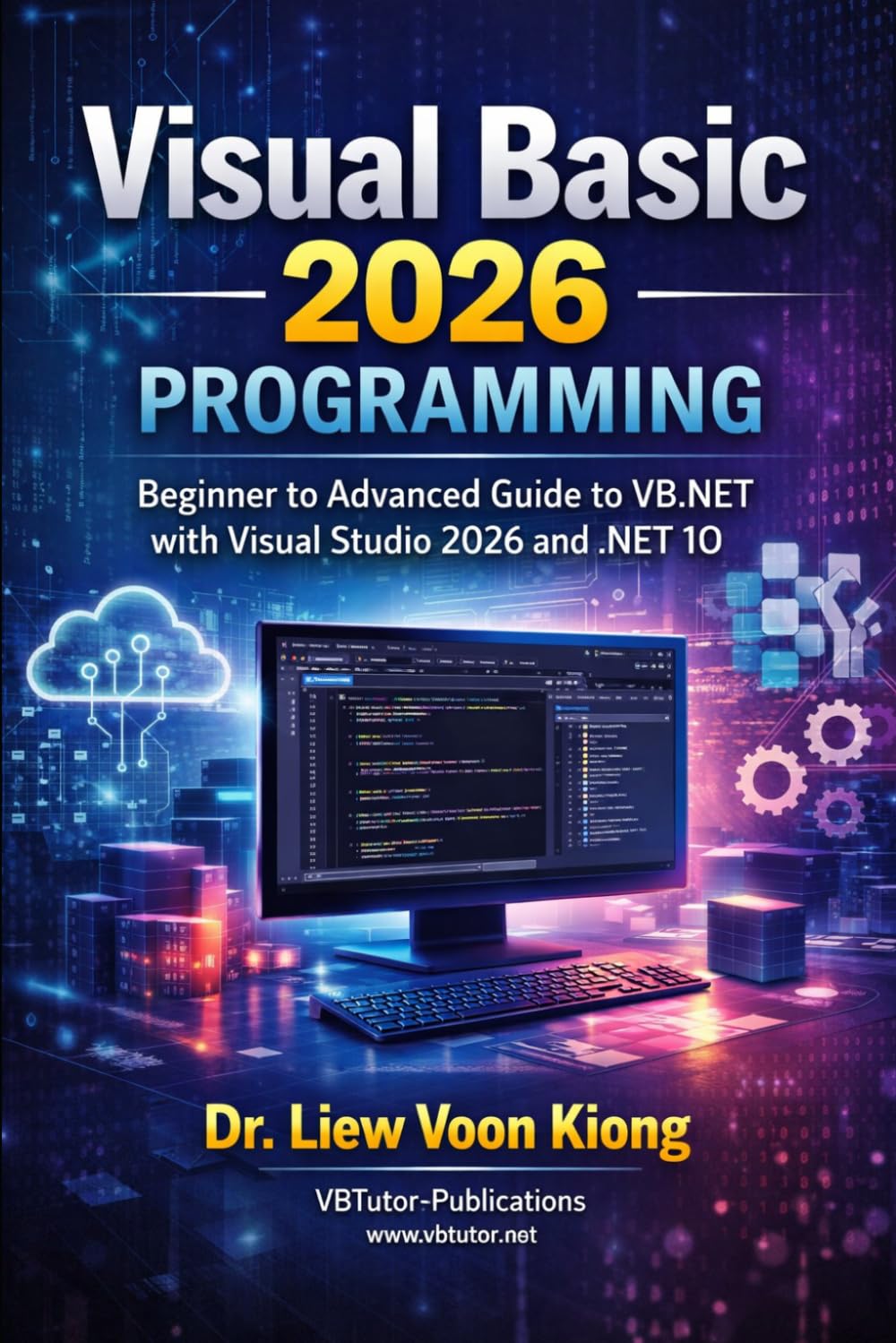
Visual Basic 2026 Programming
A complete guide to VB.NET development with Visual Studio 2026 and .NET 10 for readers who want a comprehensive, structured learning path.