Working with Controls
Master TextBox and Label controls in Visual Basic 2026 — handling user input, converting data types, validating entries, and displaying dynamic content with modern .NET 10 methods and GitHub Copilot assistance.
Control Quick Reference
Before diving into examples, here are the essential properties of both controls you will use throughout this lesson and throughout the entire tutorial:
The PlaceholderText property is now fully supported on Windows Forms TextBox in .NET 10 — set it in the Properties Window or in code: txtName.PlaceholderText = "Enter your name". The placeholder disappears automatically when the user starts typing, just like web browser input fields. No custom painting code required.
5.1 Basic Calculator with TextBox
Let's start with the most common TextBox operation: reading numeric input. The key rule in VB 2026 is that TextBox.Text is always a String. Before doing arithmetic, you must convert it to a number. The modern way to do this in VB 2026 is with Double.TryParse() — safer than the older Val() function because it handles invalid input gracefully.
Val() still works in VB 2026 for quick conversions but returns 0 silently for invalid input — you won't know the user typed "abc". Double.TryParse() is the modern, preferred approach: it returns True if conversion succeeded and False if the input is not a valid number, letting you show a proper error message.
Example 5.1 — Addition Calculator (Val method)
Add Two TextBoxes
Drag two TextBox controls onto Form1. They will be named TextBox1 and TextBox2 automatically.
Add an ADD Button
Drag a Button onto the form. Set its Text property to "ADD". Double-click it to create the Click handler.
Write the Code
Inside the Click handler, use Val() to convert the TextBox strings to numbers and add them.
Private Sub Button1_Click(sender As Object, e As EventArgs) Handles Button1.Click
    ' Convert text to numbers using Val() and add them
    Dim sum As Double = Val(TextBox1.Text) + Val(TextBox2.Text)

    ' Display the result in a message box
    MsgBox("The sum is " & sum)
End Sub

5.2 Enhanced Calculator with Labels
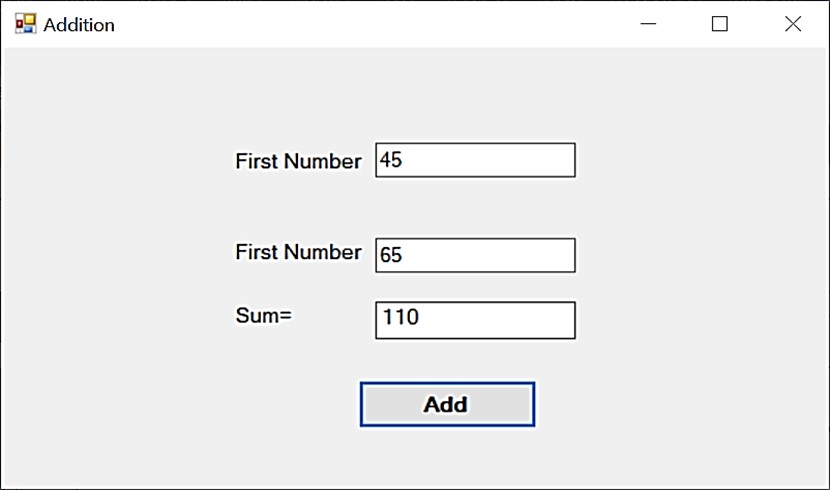
Displaying results in a Label instead of a MsgBox is much more user-friendly — the result stays visible on the form, the user can perform multiple calculations without dismissing popups, and the UI feels more like a real application.
Example 5.2 — Calculator with Result Label
Private Sub btnAdd_Click(sender As Object, e As EventArgs) Handles btnAdd.Click
    Dim n1, n2 As Double

    ' Modern VB 2026 approach: TryParse validates AND converts
    If Not Double.TryParse(txtNum1.Text, n1) OrElse Not Double.TryParse(txtNum2.Text, n2) Then
        lblResult.Text = "⚠ Please enter valid numbers"
        lblResult.ForeColor = Color.Red
        Return
    End If

    ' Calculate and display in label — no MsgBox needed
    Dim result As Double = n1 + n2
    lblResult.Text = result.ToString()
    lblResult.ForeColor = Color.DarkGreen
End Sub
5.3 Input Validation with TextBox
Real applications must handle unexpected input gracefully. A user might type letters where numbers are expected, leave fields empty, or enter values outside a realistic range. In VB 2026 the recommended validation tools are IsNumeric() for a quick check and Integer.TryParse() / Double.TryParse() for conversion with error handling.
Example 5.3 — Age Validator with Range Check
Private Sub BtnVerify_Click(sender As Object, e As EventArgs) Handles BtnVerify.Click

    ' Step 1: Check the field is not empty
    If String.IsNullOrWhiteSpace(TxtAge.Text) Then
        LblResult.Text = "⚠ Please enter your age."
        LblResult.ForeColor = Color.OrangeRed
        Return
    End If

    ' Step 2: Check the value is a valid integer
    Dim age As Integer
    If Not Integer.TryParse(TxtAge.Text, age) Then
        LblResult.Text = "⚠ Please enter a whole number."
        LblResult.ForeColor = Color.Red
        Return
    End If

    ' Step 3: Validate realistic range
    If age < 0 Or age > 120 Then
        LblResult.Text = "⚠ Please enter a realistic age (0–120)."
        LblResult.ForeColor = Color.Red

    ElseIf age >= 18 Then
        LblResult.Text = "✔ Access granted. Welcome!"
        LblResult.ForeColor = Color.DarkGreen

    Else
        LblResult.Text = "✘ Access denied. Must be 18 or older."
        LblResult.ForeColor = Color.Crimson
    End If

End Sub
Try: leave blank, type "abc", enter -5, enter 200, enter 15, enter 25 — each produces a different result.
5.4 Dynamic Content with Labels
Labels are not just static text — they can display real-time, personalised content generated from user input and system data. Visual Basic 2026 supports string interpolation using the $"..." syntax (introduced in earlier versions, fully supported in VB 17.13), making it much cleaner to build dynamic strings than using the & operator repeatedly.
Example 5.4 — Personalised Greeting with Time of Day
Private Sub BtnGreet_Click(sender As Object, e As EventArgs) Handles BtnGreet.Click

    If String.IsNullOrWhiteSpace(TxtName.Text) Then
        LblGreeting.Text = "Please enter your name first."
        LblGreeting.ForeColor = Color.OrangeRed
        Return
    End If

    ' Get current hour from system clock
    Dim currentTime As DateTime = DateTime.Now
    Dim hour As Integer = currentTime.Hour

    ' Determine time of day
    Dim timeOfDay As String
    If hour < 12 Then
        timeOfDay = "morning"
    ElseIf hour < 18 Then
        timeOfDay = "afternoon"
    Else
        timeOfDay = "evening"
    End If

    ' String interpolation — cleaner than using & repeatedly
    LblGreeting.Text = $"Good {timeOfDay}, {TxtName.Text}!"
    LblGreeting.ForeColor = Color.DarkBlue
    LblGreeting.Font = New Font(LblGreeting.Font, FontStyle.Bold)

    LblTime.Text = $"Current time: {currentTime:hh:mm tt}"

End Sub
The $"..." syntax (interpolated strings) lets you embed expressions directly inside a string using {curly braces}. It is equivalent to — but far cleaner than — "Good " & timeOfDay & ", " & TxtName.Text & "!". You can also embed format specifiers: $"{someDate:dd/MM/yyyy}" or $"{price:C2}" for currency.
5.5 BMI Calculator — Putting It All Together
This example combines everything from this lesson: two TextBox inputs, Double.TryParse() validation, arithmetic, string interpolation, and dynamic Label colour changes. It is Exercise 1 solved as a complete worked example.
Private Sub btnCalculate_Click(sender As Object, e As EventArgs) Handles btnCalculate.Click

    Dim weightKg, heightCm As Double

    If Not Double.TryParse(txtWeight.Text, weightKg) OrElse Not Double.TryParse(txtHeight.Text, heightCm) Then
        lblBMI.Text = "⚠ Enter valid weight and height."
        lblBMI.ForeColor = Color.OrangeRed
        Return
    End If

    If heightCm <= 0 OrElse weightKg <= 0 Then
        lblBMI.Text = "⚠ Values must be greater than zero."
        lblBMI.ForeColor = Color.OrangeRed
        Return
    End If

    ' BMI formula: weight(kg) / (height(m))^2
    Dim heightM As Double = heightCm / 100
    Dim bmi As Double = Math.Round(weightKg / (heightM * heightM), 1)

    ' Classify and colour-code using string interpolation
    Dim category As String
    If      bmi < 18.5 Then : category = "Underweight"  : lblBMI.ForeColor = Color.SteelBlue
    ElseIf  bmi < 25.0 Then : category = "Normal weight" : lblBMI.ForeColor = Color.DarkGreen
    ElseIf  bmi < 30.0 Then : category = "Overweight"    : lblBMI.ForeColor = Color.DarkOrange
    Else                  :   category = "Obese"         : lblBMI.ForeColor = Color.Crimson
    End If

    lblBMI.Text = $"BMI: {bmi} — {category}"
    lblBMI.Font = New Font(lblBMI.Font, FontStyle.Bold)

End Sub
5.6 GitHub Copilot — TextBox & Label Assistance
GitHub Copilot in Visual Studio 2026 is especially helpful when working with TextBox and Label controls. Here are three practical Copilot workflows for this lesson's content:
1. Generate Validation Code from a Comment
' Validate txtEmail contains @ and a dot, show error in lblError if invalid'' Validate txtEmail contains @ and a dot, show error in lblError if invalid Dim email As String = txtEmail.Text.Trim() If Not email.Contains("@") OrElse Not email.Contains(".") OrElse email.Length < 5 Then lblError.Text = "⚠ Please enter a valid email address." lblError.ForeColor = Color.Red txtEmail.Focus() Else lblError.Text = "✔ Email looks valid." lblError.ForeColor = Color.DarkGreen End If
2. Add PlaceholderText in Bulk
Ask Copilot Chat: "Set PlaceholderText for all TextBoxes on this form — txtName, txtEmail, txtPhone, txtAge — with appropriate hints"
' Add to Form_Load event handler:
txtName.PlaceholderText  = "e.g. John Smith"
txtEmail.PlaceholderText = "e.g. [email protected]"
txtPhone.PlaceholderText = "e.g. 012-3456789"
txtAge.PlaceholderText   = "Enter your age (0–120)"
3. Generate a Currency Converter
' Convert USD in txtUSD to MYR using rate 4.7, show result in lblMYR'' Convert USD in txtUSD to MYR using rate 4.7, show result in lblMYR Dim usd As Double If Double.TryParse(txtUSD.Text, usd) Then Dim myr As Double = usd * 4.7 lblMYR.Text = $"MYR {myr:F2}" lblMYR.ForeColor = Color.DarkGreen Else lblMYR.Text = "⚠ Enter a valid USD amount." lblMYR.ForeColor = Color.Red End If
Try these in the Copilot Chat panel (View → GitHub Copilot Chat) while working on TextBox/Label projects:
- "Add a TextChanged event to txtSearch that filters a list as the user types"
- "Add MaxLength and input filtering so txtPhone accepts only digits and dashes"
- "Make lblResult animate (flash) when updated"
- "Write a Clear All button that resets all TextBoxes and Labels to their default values"
📘 Lesson Summary
- TextBox.Text is always a String — convert to numbers using
Double.TryParse()orInteger.TryParse()before arithmetic. TryParse()is preferred overVal()in VB 2026 — it returnsFalsefor invalid input rather than silently returning 0.- Always check
String.IsNullOrWhiteSpace()before processing TextBox input to catch empty fields. - Label.Text is set in code at runtime to display results — no MsgBox needed, the value stays visible on the form.
- Change Label.ForeColor dynamically (Green for success, Red for error) to give users instant visual feedback.
- Use string interpolation (
$"...") for cleaner dynamic strings instead of chaining the&operator. - PlaceholderText is now fully supported in .NET 10 Windows Forms — use it to guide users on expected input format.
- GitHub Copilot can generate complete validation and conversion code from a single descriptive comment.
Exercises
Exercise 5.1 — BMI Calculator (extend the example)
- Add a ComboBox for unit system: Metric (kg/cm) vs Imperial (lbs/inches)
- Convert Imperial input to metric before calculating: weight × 0.453592, height × 2.54
- Display result in both a Label and update the form's title bar with the BMI value
- Add a Clear button that resets all fields and resets title to "BMI Calculator"
- Copilot challenge: Ask Copilot to "add a BMI history ListBox that stores the last 5 results"
Exercise 5.2 — Login Form with Validation
- Add TextBoxes for username (min 4 chars) and password (min 6 chars, PasswordChar = *)
- Add a Login button — validate both fields meet the minimum length requirements
- Show specific error messages: "Username must be at least 4 characters" etc.
- Add a ShowPassword CheckBox — when checked, set
PasswordChar = ""; when unchecked, restorePasswordChar = "*" - Disable the Login button if either field is empty using the TextChanged event
Exercise 5.3 — Currency Converter
- Add a TextBox for USD input with
PlaceholderText = "Amount in USD" - Add a ComboBox with currency options: MYR (4.70), EUR (0.92), GBP (0.79), JPY (149.5)
- Display the converted amount in a large bold Label
- Show the exchange rate used below the result: "Rate: 1 USD = 4.70 MYR"
- Update the result live using the TextChanged event — no button needed
Related Resources
← Lesson 4
Writing the Code — event handlers, MsgBox, arithmetic and Copilot-assisted coding.
Lesson 6 →
ListBox & ComboBox — list-based controls and item management.
TextBox Docs
Official Microsoft reference for the Windows Forms TextBox control in .NET.
VB Sample Code
62 complete VB.NET programs — many featuring TextBox and Label interactions.
Featured Books

Visual Basic 2022 Made Easy
In-depth coverage of TextBox, Label, and all essential Windows Forms controls — with step-by-step projects and exercises.
View on Amazon →
Visual Basic 2026 Made Easy
48 fully-explained VB.NET programs — study real-world TextBox validation, data conversion and Label manipulation in complete applications.
View on Amazon →