Mastering Formatting Functions in VB6
Learn how to format text, numbers, currency, percentages, and aligned output using Tab, Space, and Format.
Lesson Overview
Key Takeaway
Formatting functions in VB6 provide powerful tools to control how text and numbers are displayed, making your applications more professional and user-friendly.
Welcome to Lesson 12 of our Visual Basic 6 Tutorial! In this lesson, you'll master VB6's essential formatting functions. These functions are crucial for creating applications that display data in a clear, organized, and visually appealing way.
12.1 The Tab Function
The Tab function controls the horizontal positioning of output in your applications. It positions text at a specific column from the left border of the output form.
Important Note
Always include a semicolon between Tab and the items you want to display. VB6 will automatically handle the spacing based on the specified column position.
Example 12.1: Using the Tab Function
Private Sub Form_Activate()
    Print "I"; Tab(5); "like"; Tab(10); "to"; Tab(15); "learn"; Tab(20); "VB"
    Print
    Print Tab(10); "I"; Tab(15); "like"; Tab(20); "to"; Tab(25); "learn"; Tab(30); "VB"
    Print
    Print Tab(15); "I"; Tab(20); "like"; Tab(25); "to"; Tab(30); "learn"; Tab(35); "VB"
End Sub
Tab Function Output:
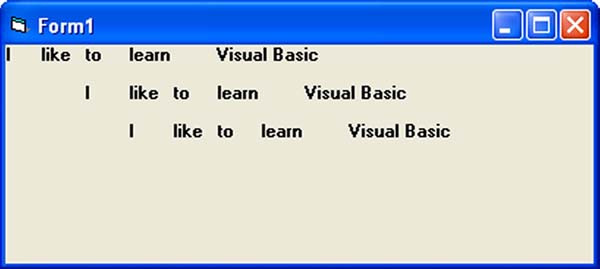
Figure 12.1: Output of the Tab function demonstration
12.2 The Space Function
The Space function is similar to Tab but specifies the exact number of spaces between items rather than absolute positions.
Example 12.2: Using the Space Function
Private Sub Form_Activate()
    Print "Visual"; Space(10); "Basic"
End Sub
Space Function Output:
12.3 The Format Function
The Format function is a powerful tool for formatting numbers, dates, and strings in VB6. It has both predefined and custom formatting options.
1 Predefined Formats
VB6 provides several built-in format styles for numbers:
| Style | Description | Example |
|---|---|---|
| General Number | No thousands separators | 8972.234 → 8972.234 |
| Fixed | Two decimal places | 8972.2 → 8972.23 |
| Standard | Thousands separators | 6648972.265 → 6,648,972.27 |
| Currency | With currency symbol | 6648972.265 → $6,648,972.27 |
| Percent | Percentage format | 0.56324 → 56.32% |
2 Custom Formats
Create your own formats with special characters:
| Format | Description | Example |
|---|---|---|
| 0 | Digit placeholder | Format(123.45, "000.00") → 123.45 |
| # | Digit placeholder (optional) | Format(123.45, "###.##") → 123.45 |
| . | Decimal point | Format(1234, "#,##0.00") → 1,234.00 |
| , | Thousands separator | Format(1234567, "#,##0") → 1,234,567 |
| % | Percentage placeholder | Format(0.123, "0.00%") → 12.30% |
Example 12.3: Predefined Format Functions
Private Sub Form_Activate()
    Print Format(8972.234, "General Number")
    Print Format(8972.2, "Fixed")
    Print Format(6648972.265, "Standard")
    Print Format(6648972.265, "Currency")
    Print Format(0.56324, "Percent")
End Sub
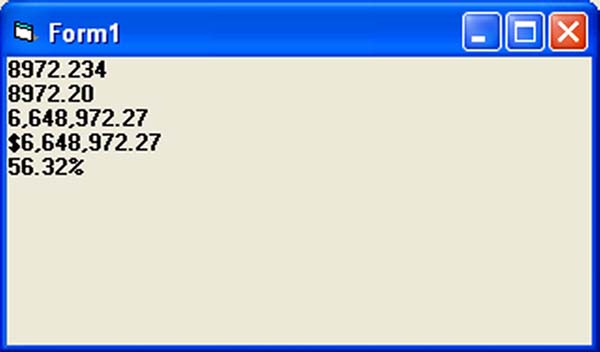
Figure 12.2: Output of predefined format functions
Example 12.4: User-Defined Format Functions
Private Sub Form_Activate()
    Print Format(781234.57, "0")
    Print Format(781234.57, "0.0")
    Print Format(781234.576, "0.00")
    Print Format(781234.576, "#,##0.00")
    Print Format(781234.576, "$#,##0.00")
    Print Format(0.576, "0%")
    Print Format(0.5768, "0.00%")
End Sub
Format Function Output:
Format Function Simulator
Test different formatting options with custom inputs
Lesson Summary
In this lesson, you've mastered VB6's essential formatting functions:
Tab Function
Controls horizontal positioning of output
Space Function
Inserts a specified number of spaces between items
Format Function
Powerful tool for formatting numbers, dates, and strings
Predefined Formats
Built-in styles like Currency, Percent, and Fixed
Custom Formats
Create your own formatting patterns using special characters
Best Practice
Use formatting functions to make your application's output more readable and professional. Formatting is especially important for financial applications where currency and percentage formats are essential.
Practice Exercises
Test your understanding of VB6 formatting functions with these exercises:
Exercise 1: Product List Formatter
Create a program that displays a product list with aligned columns using the Tab function. The list should include product names, prices, and quantities.
Exercise 2: Financial Report Generator
Generate a financial report with proper currency formatting, percentages, and thousands separators. Include columns for revenue, expenses, and profit margin.
Exercise 3: Temperature Converter
Create a temperature converter that converts between Celsius and Fahrenheit. Format the output with one decimal place and include the degree symbol.
Exercise 4: Custom Invoice Generator
Design an invoice generator that formats prices with currency symbols, aligns columns with Tab, and includes properly formatted totals with thousands separators.
Exercise 5: Progress Bar Display
Create a progress bar using the Space function to display progress visually. Show percentage completion with proper formatting.
Next Lesson
Continue your VB6 journey with Lesson 13: String Functions.
Related Resources

Visual Basic 6 Made Easy
Start your programming journey with Visual Basic 6. Learn how to build Windows applications step-by-step using an easy and beginner-friendly approach.
- Perfect for beginners
- Learn core programming concepts
- Build real VB6 applications

Visual Basic 2026 Made Easy
Upgrade to modern Visual Basic with VB.NET, .NET 10, and Visual Studio 2026. Build real-world applications with modern tools and AI-powered development.
- Modern VB.NET development
- Hands-on projects and real apps
- GitHub Copilot & AI integration
🚀 Ready for the Next Level?
After learning the basics with VB6 Made Easy and upgrading to VB2026 Made Easy, continue your journey into advanced professional development.

Advanced VB.NET Programming
Take your VB.NET skills to the next level. Learn advanced programming techniques, real-world architectures, and professional development practices using modern .NET.
Best For:
- After VB6 or VB.NET fundamentals
- Intermediate to advanced learners
- Developers building real-world systems
🚀 Migrating from VB6 to VB.NET
Still using or learning classic Visual Basic 6? This practical step-by-step guide shows you how to migrate legacy VB6 applications to modern VB.NET with Visual Studio 2026 and .NET 10.

VB6 to Modern VB.NET Made Easy
A practical step-by-step guide to migrating legacy Visual Basic 6 applications to VB.NET with Visual Studio 2026 and .NET 10.
- Designed for VB6 programmers and legacy app maintainers
- Clear migration guidance from classic VB to modern .NET
- Perfect bridge between VB6 fundamentals and VB.NET development
🚀 Move to Modern VB.NET
Visual Basic 6 is your foundation — but modern development uses VB.NET with .NET and Visual Studio 2026.
Start VB.NET Tutorial →