Mastering Functions and Sub Procedures in VB6
Learn how to create reusable code blocks with functions and sub procedures for modular programming
Lesson Overview
Key Takeaway
Functions and sub procedures in VB6 enable you to create modular, reusable code blocks that simplify complex programs and enhance maintainability.
Welcome to Lesson 14 of our Visual Basic 6 Tutorial! In this lesson, you'll master VB6's essential techniques for creating functions and sub procedures. These powerful features allow you to organize your code into reusable modules, making your applications more efficient and easier to maintain.
14.1 Creating Your Own Functions
Functions in VB6 are reusable code blocks that perform a specific task and return a value. They help simplify complex programs by breaking them into manageable pieces.
Public Functions
Public functions are accessible throughout the entire project.
- Can be called from any module or form
- Ideal for utility functions used across the application
- Requires explicit return type declaration
Private Functions
Private functions are accessible only within their own module or procedure.
- Restricted to the module where they're declared
- Ideal for internal helper functions
- Improves encapsulation and code security
Example 14.1: Future Value Calculator
This function calculates the future value of an investment based on present value, interest rate, and number of years using compound interest formula.
Public Function FV(PV As Variant, i As Variant, n As Variant) As Variant
    ' Formula to calculate Future Value(FV)
    ' PV denotes Present Value
    FV = PV * (1 + i / 100) ^ n
End Function

Private Sub compute_Click()
    ' This procedure will calculate Future Value
    Dim FutureVal As Variant
    Dim PresentVal As Variant
    Dim interest As Variant
    Dim period As Variant
    PresentVal = PV.Text
    interest = rate.Text
    period = years.Text
    ' Calling the function
    FutureVal = FV(PresentVal, interest, period)
    MsgBox ("The Future Value is " & FutureVal)
End Sub
Future Value Calculator:
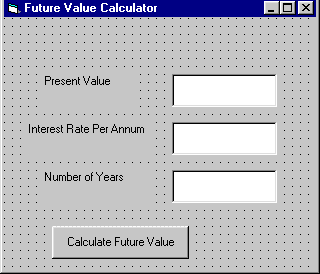
Figure 14.1: Future value calculator interface
Example 14.2: Grade Calculator
This function automatically computes examination grades based on the marks that a student obtained.
Public Function grade(mark As Variant) As String
    Select Case mark
        Case Is >= 80
            grade = "A"
        Case Is >= 70
            grade = "B"
        Case Is >= 60
            grade = "C"
        Case Is >= 50
            grade = "D"
        Case Is >= 40
            grade = "E"
        Case Else
            grade = "F"
    End Select
End Function

Private Sub compute_Click()
    grading.Caption = grade(mark)
End Sub
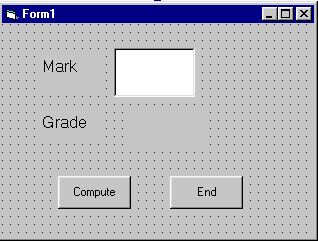
Figure 14.2: Grade calculator interface design
14.2 Creating Sub Procedures
Sub procedures (subroutines) are reusable code blocks that perform actions but don't return values. They're called from other procedures to execute specific tasks.
Sub Procedure Syntax
Sub procedures help make programs smaller and more manageable by:
- Accepting input from the user
- Displaying or printing information
- Manipulating properties
- Performing specialized tasks
Example 14.3: Sum Sub Procedure
This simple sub procedure sums two values specified by arguments and displays the result.
Private Sub cmdCal_Click()
    Dim x As Single, y As Single
    x = Val(TxtNum1.Text)
    y = Val(TxtNum2.Text)
    ' Call the sub procedure
    sum x, y
End Sub

Sub sum(a As Single, b As Single)
    MsgBox ("sum = " & a + b)
End Sub
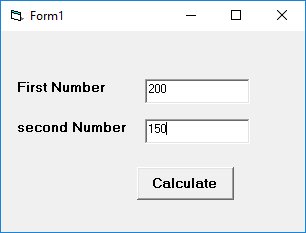
Figure 14.3a: Sum calculator interface
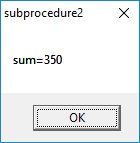
Figure 14.3b: Result of sum calculation
Example 14.3b: Buy Decision Sub Procedure
This program determines a buying decision based on shoe size and price using a sub procedure.
Public Sub buy_decision(size As Integer, price As Single)
    Dim buy As Boolean
    If size >= 7 And price <= 200 Then
        buy = True
        MsgBox ("Buy")
    Else
        buy = False
        MsgBox ("Don't Buy")
    End If
End Sub

Private Sub CmdDecide_Click()
    Dim shoe_size As Integer, shoe_price As Single
    shoe_size = TxtX.Text
    shoe_price = TxtY.Text
    ' Call the sub procedure
    buy_decision shoe_size, shoe_price
End Sub

Figure 14.4a: Buy decision interface

Figure 14.4b: Buy decision result
Lesson Summary
In this lesson, you've mastered VB6's essential techniques for creating functions and sub procedures:
Function Creation
Public and private functions with return values
Sub Procedures
Reusable code blocks for specific tasks
Parameter Passing
Accepting and processing input arguments
Modular Design
Breaking programs into manageable components
Best Practice
Use functions when you need to return a value, and sub procedures when you need to perform an action without returning a value. This distinction makes your code more readable and maintainable.
Practice Exercises
Test your understanding of VB6 functions and sub procedures with these exercises:
Exercise 1: Temperature Converter
Create a function that converts Celsius to Fahrenheit and vice versa.
Exercise 2: Prime Number Checker
Develop a function that returns True if a number is prime, False otherwise.
Exercise 3: Form Validation
Create a sub procedure that validates form inputs and displays error messages.
Exercise 4: File Logger
Build a sub procedure that writes log messages to a text file.
Exercise 5: Complex Calculator
Create a calculator with separate functions for each operation (add, subtract, multiply, divide).
Next Lesson
Continue your VB6 journey with Lesson 15: Excel VBA Functions.
Related Resources

Visual Basic 6 Made Easy
Start your programming journey with Visual Basic 6. Learn how to build Windows applications step-by-step using an easy and beginner-friendly approach.
- Perfect for beginners
- Learn core programming concepts
- Build real VB6 applications

Visual Basic 2026 Made Easy
Upgrade to modern Visual Basic with VB.NET, .NET 10, and Visual Studio 2026. Build real-world applications with modern tools and AI-powered development.
- Modern VB.NET development
- Hands-on projects and real apps
- GitHub Copilot & AI integration
🚀 Ready for the Next Level?
After learning the basics with VB6 Made Easy and upgrading to VB2026 Made Easy, continue your journey into advanced professional development.

Advanced VB.NET Programming
Take your VB.NET skills to the next level. Learn advanced programming techniques, real-world architectures, and professional development practices using modern .NET.
Best For:
- After VB6 or VB.NET fundamentals
- Intermediate to advanced learners
- Developers building real-world systems
🚀 Migrating from VB6 to VB.NET
Still using or learning classic Visual Basic 6? This practical step-by-step guide shows you how to migrate legacy VB6 applications to modern VB.NET with Visual Studio 2026 and .NET 10.

VB6 to Modern VB.NET Made Easy
A practical step-by-step guide to migrating legacy Visual Basic 6 applications to VB.NET with Visual Studio 2026 and .NET 10.
- Designed for VB6 programmers and legacy app maintainers
- Clear migration guidance from classic VB to modern .NET
- Perfect bridge between VB6 fundamentals and VB.NET development
🚀 Move to Modern VB.NET
Visual Basic 6 is your foundation — but modern development uses VB.NET with .NET and Visual Studio 2026.
Start VB.NET Tutorial →