Working with Controls in Visual Basic 6
Master essential VB6 controls, configure properties, write event procedures, and build interactive Windows applications with TextBox, Label, CommandButton, ListBox, ComboBox, CheckBox, OptionButton, PictureBox, Image, and Shape controls.
Lesson Overview
Key Takeaway
VB6 controls are the building blocks of your application's user interface. Understanding how to configure properties and handle events is essential for creating interactive and professional Windows applications.
Welcome to Lesson 3 of our Visual Basic 6 Tutorial! In this lesson, you'll learn how to work with essential VB6 controls to create interactive applications. We'll cover TextBoxes, Labels, CommandButtons, ListBoxes, ComboBoxes, and more, with practical examples you can implement.
3.1 The Control Properties
To create effective event procedures, you need to configure specific properties that dictate a control's appearance and functionality. These properties can be set either through the properties window or dynamically at runtime.
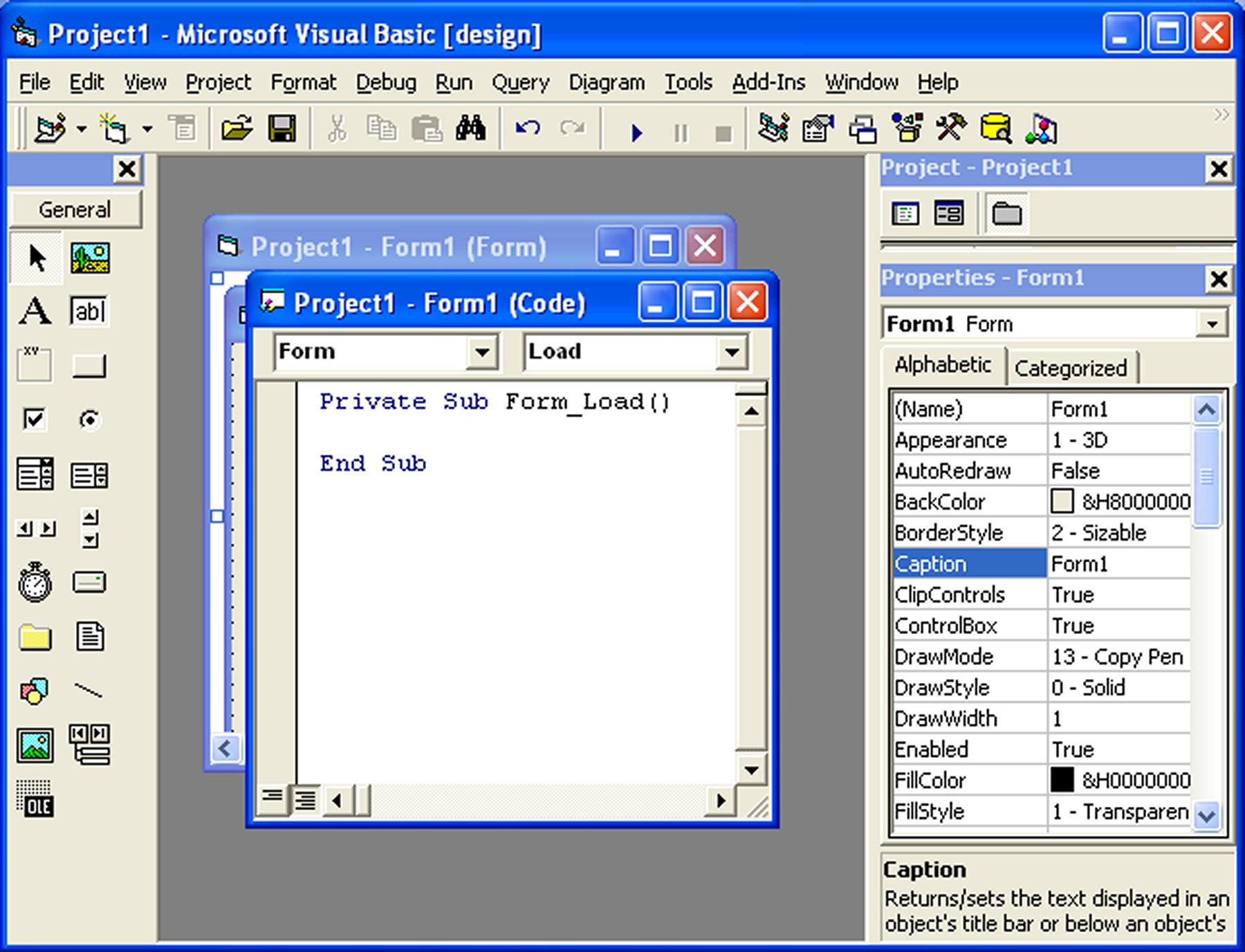
In the properties window, the top section shows the currently selected object. The bottom is divided into columns—the left lists properties, and the right displays their current states. To modify, simply adjust the items in the right column.
1 Changing Properties
Change the form caption by highlighting 'Form1' and entering your text. Customize appearance by selecting 3D/flat style, colors, fonts, and enabling/disabling controls.
2 Runtime Property Changes
You can change properties at runtime to create effects like color changes, animations, and more. VB uses hexadecimal color codes which can be found in properties windows.
Changing Background Color at Runtime
This example changes the background color of the form to red when loaded:
Private Sub Form_Load()
    Form1.Show
    Form1.BackColor = &H000000FF&
End Sub
Output:
Changing Shape at Runtime
This code changes a shape control to a circle at runtime:
Private Sub Form_Load()
    Shape1.Shape = 3
End Sub
Important Property Tips
- Set the Caption property clearly so users understand the control's function
- Use meaningful names for the Name property for easier coding and debugging
- Consider when to enable/disable controls using the Enabled property
- Use the Visible property to show/hide controls when appropriate
3.2 Handling Common Controls
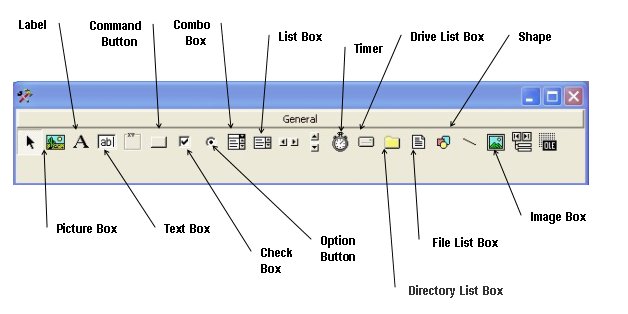
TextBox
Standard control for user input and displaying output. Handles text and numeric data.
Label
Provides instructions and displays output. The Caption property is most important.
CommandButton
Executes procedures triggered by user events, most commonly the Click event.
PictureBox
Handles graphics. Can load pictures at design time or runtime with LoadPicture.
3.2.1 The TextBox Control
The text box accepts input from users and displays output. It handles string and numeric data. Use Val(text) to convert string input to numeric data.
Example: Summation of Two Numbers
This program adds numbers entered in two text boxes and displays the result in a label:
Private Sub Command1_Click()
    ' Add values from TextBox1 and TextBox2
    Dim Sum As Double
    Sum = Val(Text1.Text) + Val(Text2.Text)

    ' Display the result in Label1
    Label1.Caption = Sum
End Sub
Output:

3.2.2 The Label Control
Labels provide instructions and display outputs. The Caption property is essential and can be changed at runtime.
3.2.3 The CommandButton Control
Command buttons execute procedures, typically in response to a Click event:
Private Sub Command1_Click()
    ' Code to execute when button is clicked
    ' ...
End Sub
Example: Simple Password Display Demo
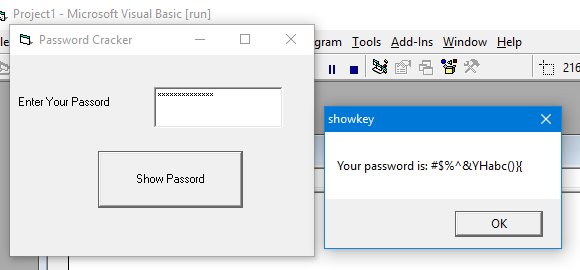
This program reveals a password entered in a text box with PasswordChar set to '*':
Private Sub cmd_ShowPass_Click()
    Dim yourpassword As String
    yourpassword = Txt_Password.Text
    MsgBox ("Your password is: " & yourpassword)
End Sub
Output:
3.2.4 The PictureBox Control
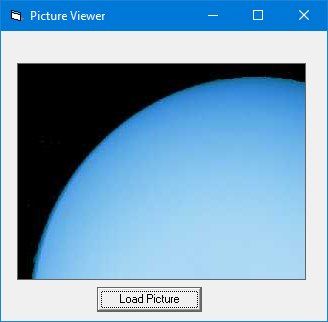
The PictureBox handles graphics. Load images at design time through properties or at runtime with LoadPicture:
Private Sub cmd_LoadPic_Click()
    Picture1.Picture = LoadPicture("C:\Path\To\Your\Image.jpg")
End Sub
3.2.5 The Image Control
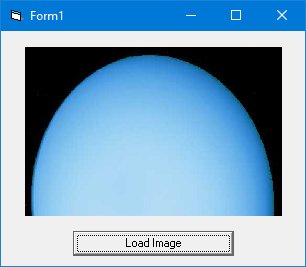
Similar to PictureBox but with a key difference - images in an ImageBox are stretchable. Use the same LoadPicture method:
3.2.6 The ListBox Control
Presents a list of items for user selection. Add items with the AddItem method:
Private Sub Form_Load()
    List1.AddItem "Lesson1"
    List1.AddItem "Lesson2"
    List1.AddItem "Lesson3"
    List1.AddItem "Lesson4"
End Sub

3.2.7 The ComboBox Control
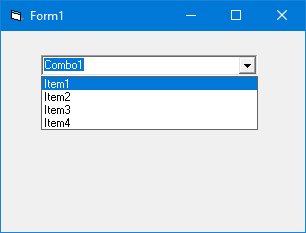
Similar to ListBox but presents items in a drop-down list. Add items with AddItem:
3.2.8 The CheckBox Control
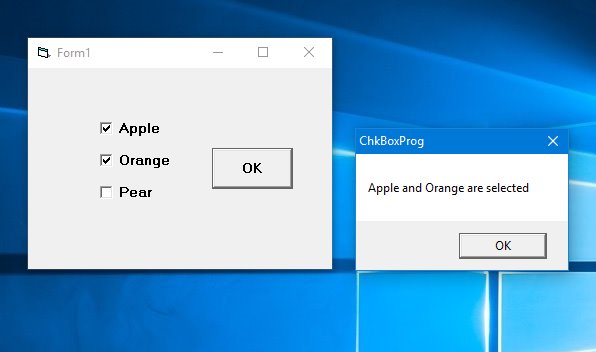
Lets users select or deselect options. Value is 1 when checked and 0 when unchecked:
3.2.9 The OptionButton Control
Option buttons work together - when one is selected, others are deselected. Value is True when selected:
Private Sub cmd_SetColor_Click()
    If Option1.Value = True Then
        Form1.BackColor = vbRed
    ElseIf Option2.Value = True Then
        Form1.BackColor = vbBlue
    Else
        Form1.BackColor = vbGreen
    End If
End Sub
3.2.10 The Shape Control
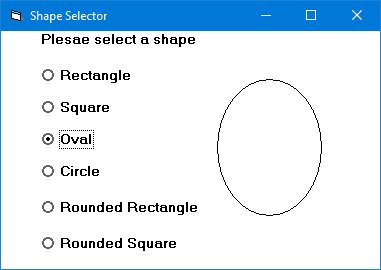
Displays various shapes. Shape property values: 0=rectangle, 1=square, 2=oval, 3=circle, 4=rounded rectangle, 5=rounded square.
Lesson Summary
In this lesson, you learned how to work with essential VB6 controls and how those controls help you build interactive Windows applications.
Control Properties
You learned how properties such as Caption, Name, BackColor, Enabled, and Visible affect the appearance and behavior of controls.
Input and Output Controls
You used TextBox for user input and Label for displaying calculated or status output.
Command Buttons and Events
You saw how CommandButton controls run code through event procedures such as Command1_Click.
Selection Controls
You explored ListBox, ComboBox, CheckBox, and OptionButton controls for user choices.
Graphics and Visual Controls
You learned how PictureBox, Image, and Shape controls can improve the visual interface of a VB6 application.
Best Practice
Use meaningful control names such as txtName, lblResult, and cmdCalculate. Clear names make your VB6 code easier to read, debug, and maintain.
Practice Exercises
Try these exercises to strengthen your understanding of VB6 controls:
Exercise 1: Caption Changer
Create a form with a command button that changes the form caption when clicked.
Exercise 2: Simple Addition Form
Use two text boxes, one command button, and one label to add two numbers and display the result.
Exercise 3: ListBox Menu
Add several programming topics to a ListBox using AddItem, then display the selected item in a label.
Exercise 4: OptionButton Color Selector
Create three option buttons named Red, Blue, and Green. When the user clicks a button, change the form background color.
Exercise 5: Picture Loader
Create a button that loads an image into a PictureBox using the LoadPicture function.
Next Lesson
Continue your VB6 journey with Lesson 4: Writing the Code.
Related Resources
Creating Applications in VB6
Review how a VB6 application is created before working with more controls.
Previous LessonWriting VB6 Code
Learn how to write cleaner code and event procedures in the next lesson.
Next Lesson
Visual Basic 6 Made Easy
Start your programming journey with Visual Basic 6 using an easy, beginner-friendly, step-by-step approach.
- Perfect for beginners
- Learn core programming concepts
- Build real VB6 applications

Visual Basic 2026 Made Easy
Upgrade from classic VB to modern VB.NET with Visual Studio 2026, .NET 10, and AI-powered development tools.
- Modern VB.NET development
- Hands-on projects and real apps
- Visual Studio 2026 workflow
🚀 Ready for the Next Level?
After learning the basics with VB6 Made Easy and upgrading to VB2026 Made Easy, continue your journey into advanced professional development.

Advanced VB.NET Programming
Take your VB.NET skills to the next level. Learn advanced programming techniques, real-world architectures, and professional development practices using modern .NET.
Best For:
- After VB6 or VB.NET fundamentals
- Intermediate to advanced learners
- Developers building real-world systems
🚀 Migrating from VB6 to VB.NET
Still using or learning classic Visual Basic 6? This practical step-by-step guide shows you how to migrate legacy VB6 applications to modern VB.NET with Visual Studio 2026 and .NET 10.

VB6 to Modern VB.NET Made Easy
A practical step-by-step guide to migrating legacy Visual Basic 6 applications to VB.NET with Visual Studio 2026 and .NET 10.
- Designed for VB6 programmers and legacy app maintainers
- Clear migration guidance from classic VB to modern .NET
- Perfect bridge between VB6 fundamentals and VB.NET development
🚀 Move to Modern VB.NET
Visual Basic 6 is your foundation — but modern development uses VB.NET with .NET and Visual Studio 2026.
Start VB.NET Tutorial →