Lesson 34: Creating an FTP Program in VB6
Build a custom FTP client using the Microsoft Internet Transfer Control
Lesson Overview
Key Takeaway
VB6 allows you to create a fully functional FTP client using the Microsoft Internet Transfer Control with minimal coding.
Welcome to Lesson 34 of our Visual Basic 6 Tutorial! In this lesson, you'll learn how to create your own FTP (File Transfer Protocol) client using VB6. This powerful tool enables file transfers between computers over the Internet, perfect for website management or downloading files from FTP servers.
34.1 Understanding FTP
FTP stands for File Transfer Protocol. It's a system for transferring files between two computers connected by the Internet. One computer acts as the server, while the other is the client.
Web Management
Webmasters use FTP to upload files to web servers for website updates
File Downloads
Download free software, games, tools and utilities from FTP sites
Authentication
Use username/password or "anonymous" for public access
34.2 The Microsoft Internet Transfer Control
The engine behind our FTP program is the Microsoft Internet Transfer Control 6.0 (Inet control). To use it:
1Add Control
Press Ctrl+T to open components, select Microsoft Internet Transfer Control 6.0
2Insert Control
Drag the Inet control to your form (default name: Inet1)
3Configure Properties
Set URL, UserName and Password properties
Essential Properties
The Inet control has three crucial properties:
' Set FTP hostname
Inet1.URL = Text1.Text

' Set username
Inet1.UserName = Text2.Text

' Set password
Inet1.Password = Text3.Text
34.3 Establishing Connection
After setting properties, connect to the server using the Execute method:
' Connect and list directory contents
Inet1.Execute, "DIR"

' Download a file
Inet1.Execute, , "get" & remotefile & localfile
Important
Use the full local path for file downloads to ensure files are saved correctly:
Inet1.Execute, , "get" & remotefile & localpath & remotefile
34.4 Handling State Changes
Monitor connection status using the StateChanged event and state constants:
| Constant | Value | Description |
|---|---|---|
| icHostResolvingHost | 1 | Looking up IP address of host computer |
| icHostResolved | 2 | Successfully found IP address |
| icConnecting | 3 | Connecting to host computer |
| icConnected | 4 | Successfully connected |
| icRequesting | 5 | Sending request to host |
| icRequestSent | 6 | Successfully sent request |
| icReceivingResponse | 7 | Receiving response from host |
| icResponseReceived | 8 | Successfully received response |
| icDisconnecting | 9 | Disconnecting from host |
| icDisconnected | 10 | Successfully disconnected |
| icError | 11 | Error in communication |
| icResponseCompleted | 12 | Request completed, all data received |
StateChanged Event Code
Private Sub Inet1_StateChanged(ByVal State As Integer)
    Select Case State
        Case icError
            MsgBox Inet1.ResponseInfo, , "File failed to transfer"
        Case icResolvingHost
            Label6.Caption = "Resolving Host"
        Case icHostResolved
            Label6.Caption = "Host Resolved"
        Case icConnecting
            Label6.Caption = "Connecting Host"
        Case icConnected
            Label6.Caption = "Host connected"
        Case icReceivingResponse
            Label6.Caption = "Receiving Response"
        Case icResponseReceived
            Label6.Caption = "Got Response"
        Case icResponseCompleted
            Dim data1 As String
            Dim data2 As String
            MsgBox "Download Completed"
    End Select
End Sub
34.5 Building the FTP Interface
The FTP program consists of two forms:
1Login Dialog
Accepts FTP address, username and password
2Main Form
Browse remote directories and download files
Login Dialog Interface
FTP Login
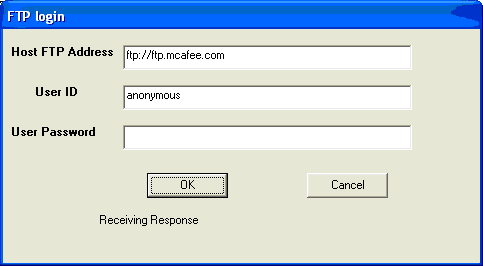
Login Dialog Code
Option Explicit

Private Sub OKButton_Click()
    Inet1.URL = Text1.Text
    Inet1.UserName = Text2.Text
    Inet1.Password = Text3.Text
    Inet1.Execute , "DIR"
    Form1.Show
    Dialog.Hide
End Sub

Private Sub Inet1_StateChanged(ByVal State As Integer)
    Select Case State
        Case icError
            MsgBox Inet1.ResponseInfo, , "File failed to transfer"
        Case icResolvingHost
            Label6.Caption = "Resolving Host"
        Case icHostResolved
            Label6.Caption = "Host Resolved"
        Case icConnecting
            Label6.Caption = "Connecting Host"
        Case icConnected
            Label6.Caption = "Host connected"
        Case icReceivingResponse
            Label6.Caption = "Receiving Response"
        Case icResponseReceived
            Label6.Caption = "Got Response"
        Case icResponseCompleted
            Dim data As String
            Dim data1 As String
            MsgBox "Transfer Completed"
            data1 = Inet1.GetChunk(1024, icString)
            data = data & data1
            Loop While Len(data1) <> 0
            Form1.Text6.Text = data
    End Select
End Sub

Private Sub CancelButton_Click()
    Text1.Text = ""
    Text2.Text = ""
    Text3.Text = ""
End Sub
Note
The statement data1 = Inet1.GetChunk(1024, icString) retrieves directory information from the remote server.
Main Form Interface
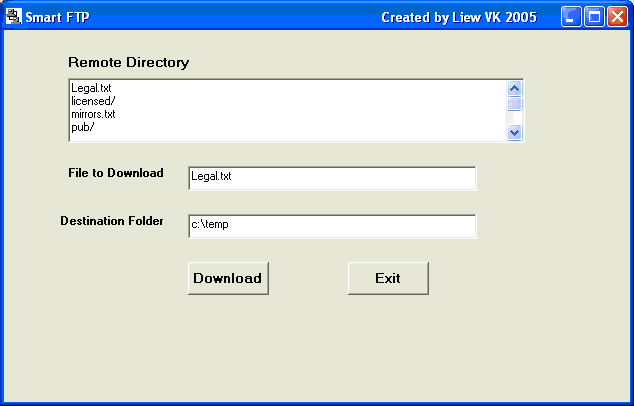
Lesson Summary
In this lesson, you've learned how to create a functional FTP client in VB6:
Internet Transfer Control
Use the Inet control for FTP capabilities
Connection Setup
Configure URL, username and password properties
State Management
Handle connection states with StateChanged event
File Transfer
Execute FTP commands like DIR and GET
Pro Tip
Enhance your FTP client with features like directory navigation, file uploads, and transfer progress indicators.
Next Lesson
Continue your VB6 journey with Lesson 35: Error Handling.
Related Resources

Visual Basic 6 Made Easy
Start your programming journey with Visual Basic 6. Learn how to build Windows applications step-by-step using an easy and beginner-friendly approach.
- Perfect for beginners
- Learn core programming concepts
- Build real VB6 applications

Visual Basic 2026 Made Easy
Upgrade to modern Visual Basic with VB.NET, .NET 10, and Visual Studio 2026. Build real-world applications with modern tools and AI-powered development.
- Modern VB.NET development
- Hands-on projects and real apps
- GitHub Copilot & AI integration
🚀 Ready for the Next Level?
After learning the basics with VB6 Made Easy and upgrading to VB2026 Made Easy, continue your journey into advanced professional development.

Advanced VB.NET Programming
Take your VB.NET skills to the next level. Learn advanced programming techniques, real-world architectures, and professional development practices using modern .NET.
Best For:
- After VB6 or VB.NET fundamentals
- Intermediate to advanced learners
- Developers building real-world systems
🚀 Migrating from VB6 to VB.NET
Still using or learning classic Visual Basic 6? This practical step-by-step guide shows you how to migrate legacy VB6 applications to modern VB.NET with Visual Studio 2026 and .NET 10.

VB6 to Modern VB.NET Made Easy
A practical step-by-step guide to migrating legacy Visual Basic 6 applications to VB.NET with Visual Studio 2026 and .NET 10.
- Designed for VB6 programmers and legacy app maintainers
- Clear migration guidance from classic VB to modern .NET
- Perfect bridge between VB6 fundamentals and VB.NET development
🚀 Move to Modern VB.NET
Visual Basic 6 is your foundation — but modern development uses VB.NET with .NET and Visual Studio 2026.
Start VB.NET Tutorial →