Lesson 26: Mastering Graphics Programming in VB2022
Learn GDI+ drawing techniques with practical VB.NET examples for lines, shapes, and complex graphics
Key Takeaway
VB2022 provides powerful GDI+ tools to create custom graphics, charts, animations, and game elements through code.
Welcome to Lesson 26 of our Visual Basic 2022 Tutorial! In this lesson, you'll master the core techniques of graphics programming in VB2022. While earlier VB versions had shape controls, modern VB.NET requires programmatic drawing using GDI+ for complete control and flexibility.
26.1 The Graphics Programming Workflow
Creating graphics in VB2022 follows a consistent pattern:
1. Create Graphics Object
Establish a drawing surface using CreateGraphics()
2. Create Drawing Tools
Define Pens for outlines and Brushes for fills
3. Draw Shapes
Use Draw/Fill methods to create graphics
Pro Tip: Resource Management
Always dispose of Graphics, Pen, and Brush objects using the Dispose() method to free resources.
26.2 Understanding the Coordinate System
VB2022 uses a Cartesian coordinate system with the origin at the top-left corner:
| Coordinate | Direction | Measurement |
|---|---|---|
| X-coordinate | Increases to the right | Pixels from left edge |
| Y-coordinate | Increases downward | Pixels from top edge |
26.3 Creating a Graphics Object
The Graphics object is your canvas for drawing operations:
' Create graphics object for the form
Dim g As Graphics = Me.CreateGraphics()

' Create graphics for a PictureBox
Dim pbGraphics As Graphics = PictureBox1.CreateGraphics()

' Create graphics from a Bitmap (for persistent drawings)
Dim bmp As New Bitmap(400, 300)
Dim memGraphics As Graphics = Graphics.FromImage(bmp)
26.4 Creating Pens and Brushes
Pens define outline characteristics, while Brushes define fill patterns:
1 Basic Pens
Define color and width for drawing lines
2 Solid Brushes
Create solid color fills for shapes
3 Advanced Tools
TextureBrushes, LinearGradientBrush, etc.
' Create a blue pen with 3px width
Dim bluePen As New Pen(Color.Blue, 3)

' Create a red solid brush
Dim redBrush As New SolidBrush(Color.Red)

' Create a gradient brush
Dim gradBrush As New LinearGradientBrush(
    New Point(0, 0),
    New Point(100, 100),
    Color.Yellow,
    Color.Orange)
26.5 Drawing Basic Shapes
VB2022 provides methods to draw various shapes:
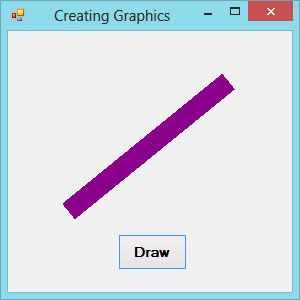
Example 26.1: Drawing Lines
This example demonstrates how to draw a simple line:
Private Sub BtnDrawLine_Click(sender As Object, e As EventArgs) Handles BtnDrawLine.Click
    ' Create graphics object
    Dim g As Graphics = Me.CreateGraphics()

    ' Create a pen
    Dim myPen As New Pen(Brushes.DarkMagenta, 10)

    ' Draw a line from (60,80) to (220,50)
    g.DrawLine(myPen, 60, 80, 220, 50)

    ' Dispose of resources
    myPen.Dispose()
    g.Dispose()
End Sub
Line Drawing Result
Example 26.2: Drawing Rectangles
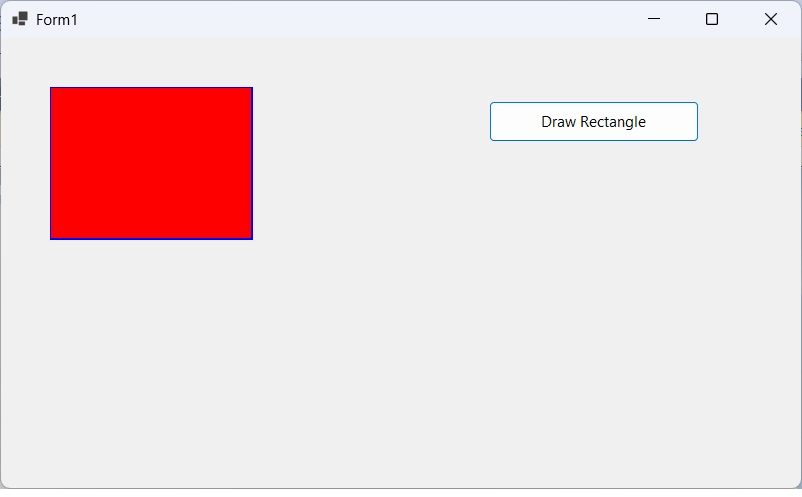
This example shows how to draw and fill rectangles:
Private Sub BtnDrawRectangle_Click(sender As Object, e As EventArgs) Handles BtnDrawRectangle.Click
    Dim g As Graphics = Me.CreateGraphics()

    ' Create a blue pen for border
    Dim borderPen As New Pen(Color.Blue, 3)

    ' Create a red brush for fill
    Dim fillBrush As New SolidBrush(Color.Red)

    ' Define rectangle position and size
    Dim rect As New Rectangle(50, 50, 200, 150)

    ' Draw the rectangle border
    g.DrawRectangle(borderPen, rect)

    ' Fill the rectangle
    g.FillRectangle(fillBrush, rect)

    ' Clean up resources
    borderPen.Dispose()
    fillBrush.Dispose()
    g.Dispose()
End Sub
Rectangle Drawing Result
Example 26.3: Drawing Circles and Ellipses
This example demonstrates circle and ellipse drawing:
Private Sub BtnDrawCircle_Click(sender As Object, e As EventArgs) Handles BtnDrawCircle.Click
    Dim g As Graphics = Me.CreateGraphics()

    ' Create a green pen
    Dim circlePen As New Pen(Color.Green, 4)

    ' Create a yellow brush
    Dim circleBrush As New SolidBrush(Color.Yellow)

    ' Define circle position and size
    Dim circleRect As New Rectangle(100, 100, 150, 150)

    ' Draw the circle
    g.DrawEllipse(circlePen, circleRect)
    g.FillEllipse(circleBrush, circleRect)

    ' Draw an ellipse
    Dim ellipseRect As New Rectangle(300, 150, 200, 100)
    g.DrawEllipse(Pens.Blue, ellipseRect)
    g.FillEllipse(Brushes.Cyan, ellipseRect)

    ' Clean up resources
    circlePen.Dispose()
    circleBrush.Dispose()
    g.Dispose()
End Sub
Circle and Ellipse Drawing Result

Example 26.4: Drawing a Simple House
Combine multiple shapes to create complex graphics:
Private Sub BtnDrawHouse_Click(sender As Object, e As EventArgs) Handles BtnDrawHouse.Click
    Dim g As Graphics = Me.CreateGraphics()

    ' Create pens and brushes
    Dim wallPen As New Pen(Color.Black, 2)
    Dim wallBrush As New SolidBrush(Color.LightBlue)
    Dim roofPen As New Pen(Color.Brown, 3)
    Dim roofBrush As New SolidBrush(Color.SaddleBrown)
    Dim doorBrush As New SolidBrush(Color.Brown)
    Dim windowBrush As New SolidBrush(Color.White)

    ' Draw house body (rectangle)
    Dim houseRect As New Rectangle(100, 150, 200, 150)
    g.FillRectangle(wallBrush, houseRect)
    g.DrawRectangle(wallPen, houseRect)

    ' Draw roof (triangle)
    Dim roofPoints() As Point = {
        New Point(90, 150),  ' Left point
        New Point(200, 80),  ' Top center
        New Point(310, 150)  ' Right point
    }
    g.FillPolygon(roofBrush, roofPoints)
    g.DrawPolygon(roofPen, roofPoints)

    ' Draw door
    Dim doorRect As New Rectangle(180, 220, 40, 80)
    g.FillRectangle(doorBrush, doorRect)
    g.DrawRectangle(wallPen, doorRect)

    ' Draw windows
    Dim leftWindow As New Rectangle(130, 180, 30, 30)
    Dim rightWindow As New Rectangle(240, 180, 30, 30)

    g.FillRectangle(windowBrush, leftWindow)
    g.DrawRectangle(wallPen, leftWindow)

    g.FillRectangle(windowBrush, rightWindow)
    g.DrawRectangle(wallPen, rightWindow)

    ' Draw window panes
    g.DrawLine(wallPen, 145, 180, 145, 210) ' Vertical
    g.DrawLine(wallPen, 130, 195, 160, 195) ' Horizontal

    g.DrawLine(wallPen, 255, 180, 255, 210) ' Vertical
    g.DrawLine(wallPen, 240, 195, 270, 195) ' Horizontal

    ' Clean up resources
    wallPen.Dispose()
    wallBrush.Dispose()
    roofPen.Dispose()
    roofBrush.Dispose()
    doorBrush.Dispose()
    windowBrush.Dispose()
    g.Dispose()
End Sub
House Drawing Result

Graphics Concepts Summary
Master these essential graphics techniques in VB2022:
| Concept | Description | Key Methods |
|---|---|---|
| Graphics Object | Drawing surface | CreateGraphics(), FromImage() |
| Pens | Define outlines | New Pen(), DrawLine(), DrawRectangle() |
| Brushes | Define fills | SolidBrush, FillRectangle(), FillEllipse() |
| Shapes | Basic geometric forms | Draw/Fill Rectangle, Ellipse, Polygon |
| Coordinate System | Positioning elements | Top-left origin, X/Y coordinates |
Best Practices
Always dispose of graphics resources, use persistent graphics for forms, and leverage double buffering for animations.
Performance Tips
For complex drawings, use a Bitmap in memory and draw to it before rendering to screen.
Advanced Features
Explore gradient brushes, texture brushes, and custom line styles for professional graphics.
Practical Exercises
Apply your graphics knowledge with these hands-on exercises:
Exercise 1: National Flag
Create a program that draws your country's flag using rectangles, circles, and other shapes.
Exercise 2: Bar Chart Generator
Draw a bar chart representing monthly sales data with labeled axes.
Exercise 3: Smiley Face
Create a smiley face using circles and arcs with appropriate coloring.
Exercise 4: Coordinate Grid
Draw a coordinate grid with X and Y axes, labels, and grid lines.
Exercise 5: Bouncing Ball Animation
Create a simple animation of a ball bouncing around the screen using a Timer control.
Challenge Exercise: Drawing Application
Create a simple drawing application where users can draw freehand with the mouse.
Next Lesson
Learn how to create rectangles and squares in Lesson 27: Drawing Rectangles.
Related Resources

Visual Basic 2022 Made Easy
The ultimate beginner-friendly guide for mastering Windows-based application development using Visual Basic in Visual Studio 2022. Whether you're a student, teacher, hobbyist, or self-learner, this book offers a clear, step-by-step approach to help you get started with ease.
What You'll Learn:
- Control structures and procedures
- Decision-making techniques
- Efficient code organization
- Practical application development
- Best practices in VB2022

Mastering Excel VBA 365
Your ultimate step-by-step guide to automating tasks, building macros, and creating powerful applications within Microsoft Excel 365. Whether you're a student, business professional, or aspiring programmer, this comprehensive handbook will help you unlock the full potential of Excel's VBA.
What You'll Learn:
- Control structures in VBA
- Decision-making techniques
- Data processing and analysis
- Report generation
- Automated workflows