
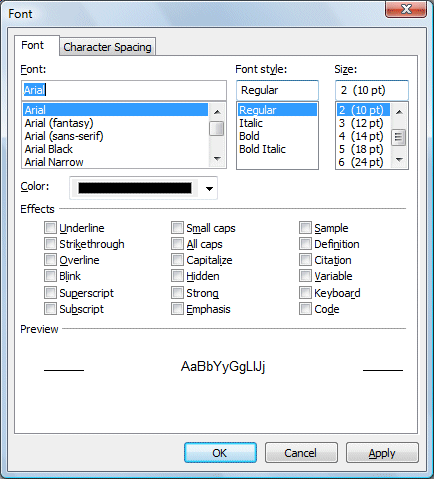
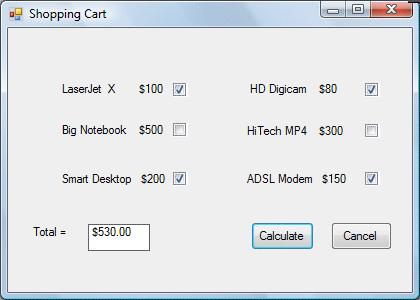
The Check box is a very useful control in Visual Basic 2008. It allows the user to select one or more items by checking the checkbox/checkboxes concerned. For example, in the Font dialog box of any Microsoft Text editor like FrontPage, there are many checkboxes under the Effects section such as that shown in Figure 17.1. The user can choose underline, subscript, small caps, superscript, blink and etc. In Visual Basic, you may create a shopping cart where the user can click on checkboxes that correspond to the items they intend to buy, and the total payment can be computed at the same time as shown in Example 17.1.
Private
Sub BtnCalculate_Click(ByVal sender As System.Object, ByVal e As
System.EventArgs) Handles BtnCalculate.Click
Const LX As Integer = 100
Const BN As Integer = 500
Const SD As Integer = 200
Const HD As Integer = 80
Const HM As Integer = 300
Const AM As Integer = 150
Dim sum As Integer
If CheckBox1.Checked = True Then
sum += LX
End If
If CheckBox2.Checked = True Then
sum += BN
End If
If CheckBox3.Checked = True Then
sum += SD
End If
If CheckBox4.Checked = True Then
sum += HD
End If
If CheckBox5.Checked = True Then
sum += HM
End If
If CheckBox6.Checked = True Then
sum += AM
End If
Label5.Text = sum.ToString("c")
Here is another example
Private
Sub Button1_Click(ByVal sender As System.Object, ByVal e As System.EventArgs)
Handles Button1.Click
Const large As Integer = 10.0
Const medium As Integer = 8
Const small As Integer = 5
Dim sum As Integer
If CheckBox1.Checked = True Then
sum += large
End If
If CheckBox2.Checked = True Then
sum += medium
End If
If CheckBox3.Checked = True Then
sum += small
End If
Label5.Text = sum.ToString("c")
In this example, the user can enter text into a textbox and format the font using the three checkboxes that represent bold, italic and underline as shown in Figure 17.2

Private Sub CheckBox1_CheckedChanged(ByVal sender As System.Object, ByVal e As
System.EventArgs) Handles CheckBox1.CheckedChanged
If CheckBox1.Checked Then
TextBox1.Font = New Font(TextBox1.Font, TextBox1.Font.Style Or FontStyle.Bold)
Else
TextBox1.Font = New Font(TextBox1.Font, TextBox1.Font.Style And Not
FontStyle.Bold)
End If
End Sub
Private Sub CheckBox2_CheckedChanged(ByVal sender As System.Object, ByVal e As
System.EventArgs) Handles CheckBox2.CheckedChanged
If CheckBox2.Checked Then
TextBox1.Font = New Font(TextBox1.Font, TextBox1.Font.Style Or FontStyle.Italic)
Else
TextBox1.Font = New Font(TextBox1.Font, TextBox1.Font.Style And Not
FontStyle.Italic)
End If
End Sub
Private Sub CheckBox3_CheckedChanged(ByVal sender As System.Object, ByVal e As
System.EventArgs) Handles CheckBox3.CheckedChanged
If CheckBox3.Checked Then
TextBox1.Font = New Font(TextBox1.Font, TextBox1.Font.Style Or
FontStyle.Underline)
Else
TextBox1.Font = New Font(TextBox1.Font, TextBox1.Font.Style And Not
FontStyle.Underline)
End If
End Sub
¡¡
* The above program uses the CheckedChanged event to respond to the user selection by checking a particular checkbox, it is similar to the click event. The statement
TextBox1.Font = New Font(TextBox1.Font, TextBox1.Font.Style Or FontStyle.Italic)
will retain the original font type but change it to italic font style.
TextBox1.Font = New Font(TextBox1.Font, TextBox1.Font.Style And Not FontStyle.Italic)
will also retain the original font type but change it to regular font style. (The other statements emply the same logic)
Copyright©2008 Dr.Liew Voon Kiong. All rights reserved |Contact|Privacy Policy
