Console Application Part 2
In this lesson, you will learn how to build Visual Basic 2015 console applications using decision-making structures such as If...Then...Else and Select Case.
38.1 Using If...Then...Else
In this lesson, we shall learn how to create Visual Basic 2015 console applications using the If...Then...Else control structure and the Select Case control structure.
The structure of If...Then...Else is as follows:
If conditions Then
   VB expressions
Else
   VB expressions
End If
This structure allows the program to execute one block of code when a condition is true and another block when the condition is false.
38.2 Example 1: Evaluating the Answer
The following example uses the If...Then...Else control structure to evaluate the answer entered by the user.
Sub Main()
Dim x, y, z, total As Single
Dim firstnum As String
Dim secondnum As String
Dim sum As String

firstnum = InputBox("Enter a Number")
secondnum = InputBox("Enter a number")
sum = InputBox("The answer is")

total = Val(firstnum) + Val(secondnum)

If total = Val(sum) Then
    MsgBox("Correct")
Else
    MsgBox("Wrong")
End If
End Sub
This program asks the user to enter two numbers and then input the answer. It compares the entered answer with the actual total and displays whether the answer is correct.
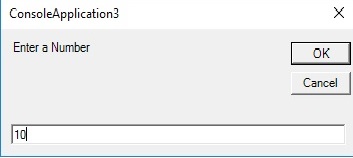
Figure 38.1 – Entering the First Number
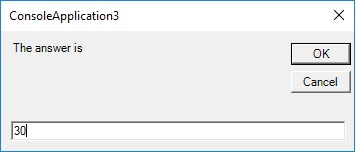
Figure 38.2 – Entering the Answer

Figure 38.3 – Correct or Wrong Message
38.3 Using Select Case
The Select Case control structure evaluates one expression for multiple values. It is preferred when there are many possible conditions to test.
Select Case expression

   Case value1
      Block of one or more VB statements
   Case value2
      Block of one or more VB statements
   Case Else
      Block of one or more VB statements

End Select
This makes the code easier to read and manage compared with writing many If...ElseIf statements.
38.4 Example 2: Exam Grade Evaluation
This application allows the user to input an examination grade and then displays the result in a message box.
Sub Main()
Dim grade As String
grade = InputBox("Enter your grade")

Select Case UCase(grade)
    Case "A"
        MsgBox("Excellent")
    Case "B"
        MsgBox("Very Good")
    Case "C"
        MsgBox("Good")
    Case "D"
        MsgBox("Pass")
    Case Else
        MsgBox("Try Again")
End Select
End Sub
The program checks the grade entered by the user and displays a suitable message.

Figure 38.4 – Inputting the Examination Grade

Figure 38.5 – Grade Evaluation Output
Recommended Upgrade
Build on This Foundation
Continue to VB2026
After learning console applications and control structures in VB2015, move to the newest VB2026 tutorial for a more modern VB.NET learning path.

Visual Basic Programming
Use this Top Release book to reinforce your tutorial learning with a more structured guide.
- If...Then...Else is useful for testing true or false conditions
- Select Case is better when there are multiple possible outcomes
- Console apps can interact with users using InputBox and MsgBox
- Decision-making structures are essential in program design