Working with ListBox and ComboBox
In the previous lesson, you learned how to work with text boxes and labels. In this lesson, you will learn how to use two more important controls: the ListBox and the ComboBox. Both controls are used to display lists of items, but they present those items in slightly different ways.
A ListBox shows many items at the same time, while a ComboBox usually shows one item first and then reveals the rest in a drop-down list when the user clicks the arrow.
Lesson Overview
6.1 Introduction
Understanding ListBox and ComboBox
Both the ListBox and ComboBox are useful controls for displaying lists. They are commonly used when you want users to choose from several predefined items instead of typing everything manually.
The main difference is how they show the list:
- ListBox displays many or all items at once.
- ComboBox usually displays one item first.
- The ComboBox reveals more items when the user clicks the drop-down arrow.
- Both controls can be updated at design time or at runtime.
6.2 ListBox
Adding Items to a ListBox
The function of a ListBox in Visual Basic 2015 is to display a list of items so that the user can select one or more items from that list. Items can be added when designing the form or while the program is running.
To add items at design time, insert a list box on the form, open the Properties window, and click the collection editor for the Items property. Then type the items one by one.
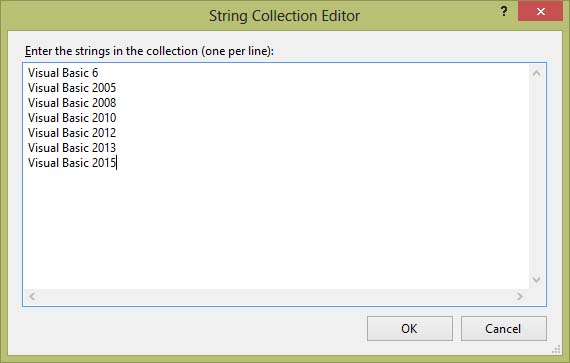
Figure 6.1: Adding items to a ListBox using the String Collection Editor
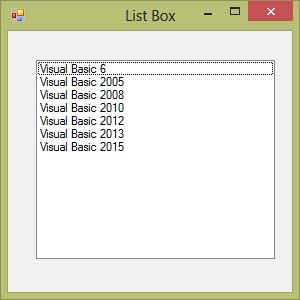
Figure 6.2: Items displayed in the ListBox
6.3 Runtime Example
Adding Items to a ListBox at Runtime
In Visual Basic 2015, you can also add items to the ListBox while the program is running by using the Items.Add() method.
Private Sub Form1_Load(sender As Object, e As EventArgs) Handles MyBase.Load
    ListBox1.Items.Add("Visual Studio 2015")
End Sub
The code above adds a new item to the end of the ListBox when the form loads. This is very useful when the list depends on conditions or user input.
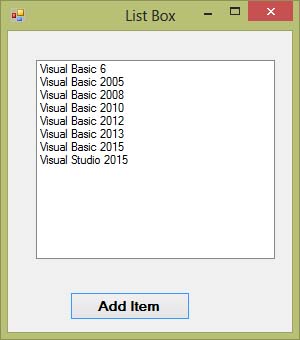
Figure 6.3: A new item added to the ListBox at runtime
6.4 User Input
Letting the User Add Items
You can also allow the user to add their own items by using an InputBox. Add a button to the form, change its text to Add Item, and use code like this:
Private Sub BtnAdd_Click(sender As Object, e As EventArgs) Handles Button1.Click
    Dim myitem
    myitem = InputBox("Enter your Item")
    ListBox1.Items.Add(myitem)
End Sub
When the user clicks the button, an input box appears. Whatever the user types will be added to the list.
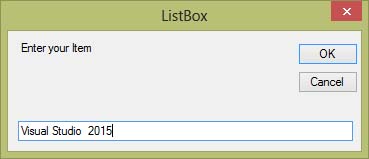
Figure 6.4: Using an InputBox to add an item to the ListBox
6.5 Removing Items
Deleting and Clearing ListBox Items
To delete an item at runtime, use the Remove() method:
Private Sub Form1_Load(sender As Object, e As EventArgs) Handles MyBase.Load
    ListBox1.Items.Remove("Visual Basic 6")
End Sub
You can also let the user choose which item to delete by using another input box:
Private Sub BtnDelete_Click(sender As Object, e As EventArgs) Handles Button1.Click
    Dim myitem
    myitem = InputBox("Enter your Item for Deletion")
    ListBox1.Items.Remove(myitem)
End Sub
To remove all items from the ListBox at once, use the Clear() method:
Private Sub Button3_Click(sender As Object, e As EventArgs) Handles Button2.Click
    ListBox1.Items.Clear()
End Sub
6.6 ComboBox
Working with the ComboBox
In Visual Basic 2015, the ComboBox also presents a list of items for selection. However, unlike the ListBox, it shows only one item at first and hides the rest until the user clicks the drop-down arrow on the right side.
You can add items to the ComboBox at design time using the same String Collection Editor, and you can also specify a default displayed text.
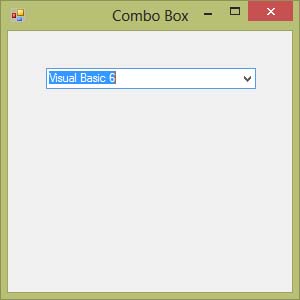
Figure 6.5: ComboBox showing the default displayed item
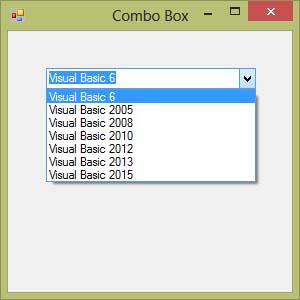
Figure 6.6: ComboBox drop-down list displaying all items
6.7 ComboBox Examples
Adding and Removing ComboBox Items
You may also use the Items.Add() method to add items at runtime:
Private Sub BtnAdd_Click(sender As Object, e As EventArgs) Handles Button1.Click
    ComboBox1.Items.Add("Visual Studio 2015")
End Sub
To let the user add their own item:
Private Sub Button1_Click(sender As Object, e As EventArgs) Handles Button1.Click
    Dim myitem
    myitem = InputBox("Enter your Item")
    ComboBox1.Items.Add(myitem)
End Sub
To remove an item:
Private Sub Delete_Click(sender As Object, e As EventArgs) Handles Button2.Click
    ComboBox1.Items.Remove("Visual Basic 6")
End Sub
To clear all items:
Private Sub Btn_Clr_Click(sender As Object, e As EventArgs) Handles Button2.Click
    ComboBox1.Items.Clear()
End Sub
6.8 Important Reminder
When to Use ListBox or ComboBox
Use a ListBox when you want users to see many items at once. Use a ComboBox when you want to save space and show the list only when needed. Both are very useful controls in real applications such as menu selection, category filtering, and choosing predefined options.
Recommended Upgrade
Build on This Foundation
Continue to VB2026
After learning the basics of ListBox and ComboBox in VB2015, move to the newest VB2026 tutorial for a more modern VB.NET learning path.

Visual Basic Programming
Use this Top Release book to reinforce your tutorial learning with a more structured guide.
Practice
Exercise Questions
- What is the main difference between a ListBox and a ComboBox?
- Write a short VB2015 example that adds an item to a ListBox at runtime.
- How would you clear all items from a ComboBox in Visual Basic 2015?