Variables and Constants
In Lesson 8, you learned about different kinds of data. In this lesson, you will learn how Visual Basic 2015 stores data using variables and constants. Variables allow the value to change during program execution, while constants keep the same value throughout the program.
Variables are like storage boxes in memory. You give each box a name, decide what kind of data it can hold, and then assign values to it when your program runs.
Lesson Overview
9.1 Introduction
What Are Variables?
Variables are specific areas allocated in computer memory for storing data. A simple way to think about variables is to imagine mailboxes in a post office. The contents of a mailbox can change over time, and the same is true for the value stored in a variable.
In Visual Basic 2015, every variable must have a name. This name allows you to refer to the stored value later in your code.
9.1 Variable Names
Rules for Naming Variables
To create a valid variable name in Visual Basic 2015, you need to follow a few rules:
- It must be less than 255 characters.
- No spaces are allowed.
- It must not begin with a number.
- A period is not allowed.
Good variable names make your code easier to read and understand.
| Valid Names | Invalid Names |
|---|---|
| My_Name | My.Name |
| VB2015 | 2015VB |
| Long_Name_Can_beUSE | LongName&Canbe&Use |
9.2 Declaration
Declaring Variables
In Visual Basic 2015, you usually declare variables before using them. To declare a variable, you provide its name and its data type.
Dim VariableName As DataTypeIf you want to declare more than one variable, you can declare them on separate lines or combine them into one line.
Dim VariableName1 As DataType1, VariableName2 As DataType2, VariableName3 As DataType3Declaring variables clearly tells Visual Basic what kind of values those variables are expected to store.
9.2 Example 9.1
Declaring Several Variables
Private Sub Form1_Load(ByVal sender As System.Object, ByVal e As System.EventArgs) Handles MyBase.Load
    Dim password As String
    Dim MyName As String
    Dim Num1 As Integer
    Dim Num2 As Single
    Dim Sum As Integer
    Dim StartDate As Date
End Sub
You can also write them in one line:
Dim password As String, MyName As String, Num1 As Integer, Num2 As Single, Sum As Integer, StartDate As Date9.2 Example 9.2
Declaring and Assigning a Value at the Same Time
Private Sub Button1_Click(sender As Object, e As EventArgs) Handles Button1.Click
    Dim YourName As String = "George"
    Dim MyMsg As String
    MyMsg = "Happy Birthday!"
    MsgBox(MyMsg & "," & YourName)
End Sub
Notice that the following two approaches mean the same thing:
Dim YourName As String = "George"and
Dim YourName As String
YourName = "George"
When the program runs, the message box will show the text Happy Birthday!, George.

Figure 9.1: Output of the string variable example
9.3 Assignment
Assigning Values to Variables
After declaring variables, you can assign values to them. The basic syntax is:
Variable = ExpressionThe expression can be a number, a string, a mathematical formula, a Boolean value, or the value of another variable or control property.
firstNumber = 100
secondNumber = firstNumber - 99
userName = "John Lyan"
userpass.Text = password
Label1.Visible = True
Command1.Visible = False
Label4.Text = TextBox1.Text
ThirdNumber = Val(usernum1.Text)
total = firstNumber + secondNumber + ThirdNumber
X = Sqr(16)
TrimString = LTrim(" Visual Basic")
Num = Int(Rnd * 6) + 1
9.3 Type Mismatch
What Happens When the Data Type Is Wrong?
An error occurs if you assign a value that does not match the declared data type of the variable. For example, if you declare a variable as an integer but then assign a string to it, Visual Basic will report an error.
Private Sub Button1_Click(sender As Object, e As EventArgs) Handles Button1.Click
    Dim YourMessage As Integer
    YourMessage = "Happy Birthday!"
    MsgBox(YourMessage)
End Sub
This happens because an integer variable cannot store a sentence.

Figure 9.2: Error caused by assigning an incompatible data type
9.4 Scope
Scope of Declaration
Although Dim is the most common keyword for declaration, Visual Basic 2015 also allows other keywords such as Private, Static, and Public.
Private VariableName As DataType
Static VariableName As DataType
Public VariableName As DataType- Private declares a variable local to a procedure or module.
- Static preserves the variable’s value even after the procedure ends.
- Public declares a global variable that can be used across the program.
Scope tells you where a variable can be used and how long its value will remain available.
9.5 Constants
Declaring Constants
Constants are similar to variables, but their values do not change while the program is running. They are useful for fixed values such as mathematical constants, tax rates, and conversion factors.
Const ConstantName As DataType = ValueHere is an example using a constant for the value of Pi:
Private Sub Button1_Click(sender As Object, e As EventArgs) Handles Button1.Click
    Const Pi As Single = 3.142
    Dim R As Single = 10
    Dim AreaCircle As Single
    AreaCircle = Pi * R ^ 2
    MsgBox("Area of circle with " & "radius" & R & "=" & AreaCircle)
End Sub
In this example, Pi is declared as a constant because its value should not change.
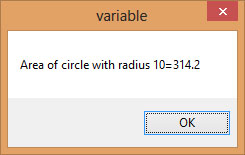
Figure 9.3: Output of the constant example
9.6 Why This Matters
Choosing Variables and Constants Properly
Variables are used when values may change, while constants are used when values should remain fixed. Understanding the difference helps you write clearer, safer, and more organized Visual Basic programs.
Recommended Upgrade
Build on This Foundation
Continue to VB2026
After learning the basics of variables and constants in VB2015, move to the newest VB2026 tutorial for a more modern VB.NET learning path.

Visual Basic Programming
Use this Top Release book to reinforce your tutorial learning with a more structured guide.
Practice
Exercise Questions
- What is the difference between a variable and a constant in Visual Basic 2015?
- Write three valid variable names and three invalid variable names.
- Why would you use a constant for Pi instead of storing it in an ordinary variable?