String Manipulation
In Visual Basic 2015, a string is a unit of data made up of characters such as letters, digits, spaces, punctuation marks, and symbols. In real applications, strings are used for names, addresses, titles, phone numbers, email addresses, messages, and more. This lesson explains how to join strings together and how to manipulate them using useful built-in functions.
String handling is essential in programming because many real-world applications work with text, such as word processing, forms, contact lists, search tools, and data entry systems.
Lesson Overview
12.1 Introduction
What Is a String?
A string is a single unit of data made up of a sequence of characters. These characters may include letters, digits, spaces, and special symbols such as @, #, $, %, ^, and &.
Even if a string contains digits, it is still treated as text unless it is explicitly converted into a numeric value. That is why a phone number is stored as a string rather than a number.
In Visual Basic 2015, string manipulation refers to processing or editing text. This includes combining text, extracting part of a text, trimming spaces, changing letter case, searching for a word, and more.
12.1 Concatenation
Combining Strings with + and &
In Visual Basic 2015, both the + sign and the & sign can be used to join strings together. This operation is called string concatenation.
For example, you can join the strings "Visual ", "Basic ", and "2015" to produce "Visual Basic 2015".
Private Sub Form1_Load(sender As Object, e As EventArgs) Handles MyBase.Load

    Dim str1 = "Visual ", str2 = "Basic ", str3 = "2015", str As String
    str = str1 + str2 + str3
    MsgBox(str)

End Sub
The statement above can also be written as:
str = str1 & str2 & str3Both versions produce the same result when all values are strings.
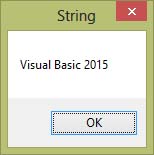
Figure 12.1: Output of string concatenation
12.1 Type Mismatch
Why + May Cause an Error
If one of the variables is numeric, using the + sign may cause a type mismatch error. Consider the following example:
Private Sub Form1_Load(sender As Object, e As EventArgs) Handles MyBase.Load

    Dim str1 = "Visual ", str2 = "Basic ", str3 = "2015", str As String
    Dim str4 As Integer
    str4 = 100
    str = str1 + str2 + str3 + str4
    MsgBox(str)

End Sub
This produces an error because Visual Basic tries to treat the expression inconsistently when text and numeric values are combined with the + operator.

Figure 12.2: Type mismatch error
To avoid this problem, use the & sign instead. With &, the integer is treated as text automatically:
str = str1 & str2 & str3 & str4This works correctly and produces the combined output.

Figure 12.3: Correct output using the & sign
12.2 Built-in Functions
Useful String Functions in Visual Basic 2015
Visual Basic 2015 provides many useful built-in string functions. These functions accept input and return a value that your program can use immediately.
Some of the most common functions are:
- Len — returns the length of a string
- Right — extracts characters from the right side
- Left — extracts characters from the left side
- Mid — extracts characters from the middle
- Trim, LTrim, RTrim — remove spaces
- InStr — finds the position of embedded text
- UCase and LCase — convert case
- Chr and Asc — convert between characters and ASCII codes
12.2(a)
The Len Function
The Len function returns the number of characters in a string, including spaces.
Len("Visual Basic 2015") = 17
Len("welcome to VB 2015 tutorial") = 27
Example:
Private Sub Button1_Click(ByVal sender As System.Object, ByVal e As System.EventArgs) Handles Button1.Click

    Dim MyText As String
    MyText = "Visual Basic 2015"
    MsgBox(Len(MyText))

End Sub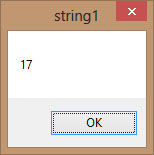
Figure 12.4: Output of the Len function
12.2(b)
The Right Function
The Right function extracts a specified number of characters from the right side of a string.
Microsoft.VisualBasic.Right("Phrase", n)Example:
Private Sub Button1_Click(ByVal sender As Object, ByVal e As EventArgs) Handles Button1.Click
    Dim MyText As String
    MyText = "Visual Basic"
    MsgBox(Microsoft.VisualBasic.Right(MyText, 4))
End Sub
This example returns the four rightmost characters of the phrase.
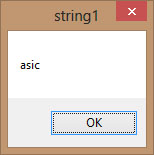
Figure 12.5: Output of the Right function
12.2(c)
The Left Function
The Left function extracts a specified number of characters from the left side of a string.
Microsoft.VisualBasic.Left("Phrase", n)For example:
Microsoft.VisualBasic.Left("Visual Basic", 4) = "Visu"12.2(d)
The Mid Function
The Mid function retrieves a portion of text from the middle of a phrase.
Mid(phrase, position, n)- phrase is the original string.
- position is the starting position.
- n is the number of characters to extract.
Example:
Private Sub Button1_Click(sender As Object, e As EventArgs) Handles Button1.Click
    Dim myPhrase As String
    myPhrase = InputBox("Enter your phrase")
    LblPhrase.Text = myPhrase
    LblExtract.Text = Mid(myPhrase, 2, 6)
End Sub
In this example, the extracted text begins at position 2 and contains 6 characters.
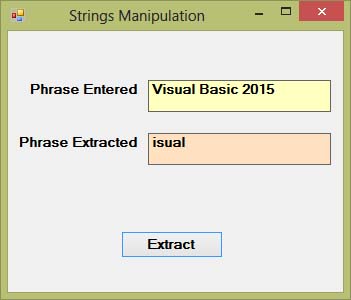
Figure 12.6: Output of the Mid function example
12.2(e)
The Trim, LTrim, and RTrim Functions
These functions remove unnecessary spaces from a string:
- Trim removes spaces on both sides
- LTrim removes spaces on the left side
- RTrim removes spaces on the right side
Trim(" Visual Basic ") = "Visual Basic"
LTrim("     Visual Basic 2015") = "Visual Basic 2015"
RTrim("Visual Basic 2015     ") = "Visual Basic 2015"
Example:
Private Sub Button1_Click(ByVal sender As System.Object, ByVal e As System.EventArgs) Handles Button1.Click
    Dim myPhrase As String
    myPhrase = InputBox("Enter your phrase")
    Label1.Text = Trim(myPhrase)
End Sub
12.2(f)
The InStr Function
The InStr function searches for an embedded phrase within a larger phrase and returns the position where it begins.
InStr(n, originalPhrase, embeddedPhrase)Example:
InStr(1, "Visual Basic 2015", "Basic") = 8Program example:
Private Sub Button1_Click(ByVal sender As System.Object, ByVal e As System.EventArgs) Handles Button1.Click
    Label1.Text = InStr(1, "Visual Basic", "Basic")
End Sub
The function returns a numeric value that shows the starting position of the embedded word.
12.2(g)
The UCase and LCase Functions
UCase converts all characters to uppercase, while LCase converts all characters to lowercase.
Microsoft.VisualBasic.UCase("Visual Basic") = "VISUAL BASIC"
Microsoft.VisualBasic.LCase("Visual Basic") = "visual basic"
12.2(h)
The Chr and Asc Functions
The Chr function returns the character that matches an ASCII code. The Asc function returns the ASCII code for a given character.
Chr(charcode)
Asc(character)
Examples:
Chr(65) = A
Chr(122) = z
Chr(37) = %

Asc("B") = 66
Asc("&") = 38
ASCII stands for American Standard Code for Information Interchange. It is a standard system for representing characters with numbers.
12.3 Why This Matters
Why String Manipulation Is Important
String manipulation is one of the most practical parts of programming because real applications often work with names, addresses, messages, search terms, user input, and formatted output. Once you master these functions, you can build much more powerful text-processing programs.
Recommended Upgrade
Build on This Foundation
Continue to VB2026
After learning the basics of string manipulation in VB2015, move to the newest VB2026 tutorial for a more modern VB.NET learning path.

Visual Basic Programming
Use this Top Release book to reinforce your tutorial learning with a more structured guide.
Practice
Exercise Questions
- What is the difference between using + and & for concatenation in Visual Basic 2015?
- Write a short example using Mid to extract 5 characters from a phrase.
- What do the Chr and Asc functions do?