Checkbox
In this lesson, you will learn how to use the CheckBox control in Visual Basic 2015. A checkbox allows the user to select one or more items independently. This makes it different from controls such as radio buttons, where only one option is normally selected at a time.
Checkboxes are useful whenever the user needs to choose several options at the same time, such as selecting products in a shopping cart or applying text styles like bold, italic, and underline.
Lesson Overview
21.1
What Is a Checkbox?
The CheckBox control allows the user to turn an option on or off by ticking or clearing a box. In many applications, several checkboxes can be selected at once.
A common real-world example is the Font dialog box in word processors such as Microsoft Word, where the user may choose several effects such as underline, superscript, or small caps at the same time.
In Visual Basic 2015, checkboxes are also useful for shopping carts, option panels, questionnaires, settings pages, and formatting tools.
21.2 Example 21.1
Shopping Cart with Checkboxes
In this example, a simple shopping cart is created using six checkboxes, a label for the total amount, and two buttons. Each item has a fixed price declared by using the Const keyword.
If a checkbox is ticked, its Checked property is True. The program then adds the corresponding item price to the total by using the += operator. For example:
sum += BNmeans the same as:
sum = sum + BNFinally, the total is displayed in currency format by using ToString("c").
21.2 Code
The Shopping Cart Program
Public Class Form1

Private Sub BtnCal_Click(sender As Object, e As EventArgs) Handles BtnCal.Click
    Const LX As Integer = 100
    Const BN As Integer = 500
    Const SD As Integer = 200
    Const HD As Integer = 80
    Const HM As Integer = 300
    Const AM As Integer = 150
    Dim sum As Integer

    If CheckBox1.Checked = True Then
        sum += LX
    End If

    If CheckBox2.Checked = True Then
        sum += BN
    End If

    If CheckBox3.Checked = True Then
        sum += SD
    End If

    If CheckBox4.Checked = True Then
        sum += HD
    End If

    If CheckBox5.Checked = True Then
        sum += HM
    End If

    If CheckBox6.Checked = True Then
        sum += AM
    End If

    LblTotal.Text = sum.ToString("c")
End Sub

Private Sub BtnReset_Click(sender As Object, e As EventArgs) Handles BtnReset.Click
    CheckBox1.Checked = False
    CheckBox2.Checked = False
    CheckBox3.Checked = False
    CheckBox4.Checked = False
    CheckBox5.Checked = False
    CheckBox6.Checked = False
End Sub

End Class
The Reset button clears all selections by setting each checkbox to False.
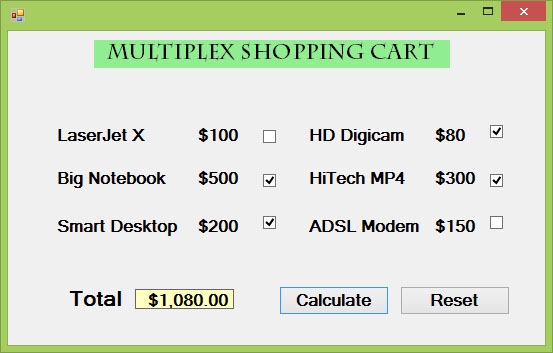
Figure 21.1: Shopping cart using checkboxes
21.3 Example 21.2
A Simpler Price Selection Example
The next example uses three checkboxes to select item sizes such as large, medium, and small. Each selected checkbox contributes its fixed value to the total.
Private Sub Button1_Click(ByVal sender As System.Object, ByVal e As System.EventArgs) Handles Button1.Click

    Const large As Integer = 10.0
    Const medium As Integer = 8
    Const small As Integer = 5
    Dim sum As Integer

    If CheckBox1.Checked = True Then
        sum += large
    End If

    If CheckBox2.Checked = True Then
        sum += medium
    End If

    If CheckBox3.Checked = True Then
        sum += small
    End If

    Label5.Text = sum.ToString("c")

End Sub
This example shows that the same checkbox logic can be reused in smaller and simpler selection systems.
21.4 Example 21.3
Formatting Label Text with Checkboxes
Checkboxes can also be used for text formatting. In this example, three checkboxes represent Bold, Italic, and Underline. Whenever the user checks or unchecks an option, the label’s font style changes accordingly.
This program uses the CheckedChanged event, which responds whenever the check state changes.
21.4 Code
The Font Styling Program
Public Class Form1

Private Sub ChkBold_CheckedChanged(sender As Object, e As EventArgs) Handles ChkBold.CheckedChanged
    If ChkBold.Checked Then
        LblDisplay.Font = New Font(LblDisplay.Font, LblDisplay.Font.Style Or FontStyle.Bold)
    Else
        LblDisplay.Font = New Font(LblDisplay.Font, LblDisplay.Font.Style And Not FontStyle.Bold)
    End If
End Sub

Private Sub ChkItalic_CheckedChanged(sender As Object, e As EventArgs) Handles ChkItalic.CheckedChanged
    If ChkItalic.Checked Then
        LblDisplay.Font = New Font(LblDisplay.Font, LblDisplay.Font.Style Or FontStyle.Italic)
    Else
        LblDisplay.Font = New Font(LblDisplay.Font, LblDisplay.Font.Style And Not FontStyle.Italic)
    End If
End Sub

Private Sub ChkUnder_CheckedChanged(sender As Object, e As EventArgs) Handles ChkUnder.CheckedChanged
    If ChkUnder.Checked Then
        LblDisplay.Font = New Font(LblDisplay.Font, LblDisplay.Font.Style Or FontStyle.Underline)
    Else
        LblDisplay.Font = New Font(LblDisplay.Font, LblDisplay.Font.Style And Not FontStyle.Underline)
    End If
End Sub

End Class
The statement below keeps the same font family and size, but adds italic formatting:
LblDisplay.Font = New Font(LblDisplay.Font, LblDisplay.Font.Style Or FontStyle.Italic)The next statement removes italic formatting while preserving the rest of the label’s original font settings:
LblDisplay.Font = New Font(LblDisplay.Font, LblDisplay.Font.Style And Not FontStyle.Italic)The same logic is used for bold and underline.
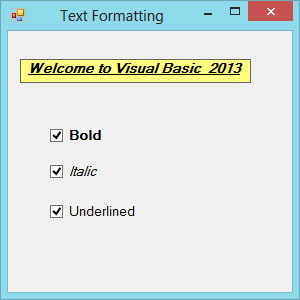
Figure 21.2: Output of the checkbox-based font styling example
21.5
Why Checkboxes Are Useful
Checkboxes are ideal when the user should be allowed to choose multiple options independently. They are simple to use, highly flexible, and useful in shopping carts, settings screens, option panels, surveys, and text formatting tools.
Recommended Upgrade
Build on This Foundation
Continue to VB2026
After learning the basics of checkbox controls in VB2015, move to the newest VB2026 tutorial for a more modern VB.NET learning path.

Visual Basic Programming
Use this Top Release book to reinforce your tutorial learning with a more structured guide.
Practice
Exercise Questions
- What is the main difference between a checkbox and a radio button?
- Why is the Checked property important when working with checkboxes?
- Write a short VB2015 example that uses two checkboxes to add two optional charges to a total price.