Select Case
In this lesson, you will learn how to use the Select Case control structure in Visual Basic 2015. Like If...Then...ElseIf, it is used for decision making. However, Select Case is often a better choice when one expression needs to be compared against many possible values or ranges.
If...ElseIf is useful when different expressions are being tested. Select Case is cleaner when a single expression is tested against many values, ranges, or patterns.
Lesson Overview
14.1 Introduction
Why Use Select Case?
The If...Then...ElseIf control structure evaluates one expression through multiple separate conditions. In contrast, the Select Case structure evaluates one expression once, then compares it to many possible values or ranges.
Select Case is usually easier to read when:
- One variable must be checked against many possible values.
- You want cleaner and more organized decision-making code.
- You are matching ranges such as exam marks, categories, or options.
14.1 Structure
The Select Case...End Select Structure
The basic structure of Select Case in Visual Basic 2015 is:
Select Case expression
    Case value1
        Statements
    Case value2
        Statements
    Case value3
        Statements
    Case Else
        Statements
End Select
Visual Basic evaluates the expression once and then checks which Case matches. If none of the listed cases match, the statements in Case Else will run.
14.2 Example 14.1
Using Select Case with Letter Grades
In this example, the program displays a message associated with the grade entered by the user. This is a good use of Select Case because one input value, the grade, may match several possible cases.
Private Sub BtnShow_Click(sender As Object, e As EventArgs) Handles BtnShow.Click
    Dim grade As String
    grade = TxtGrade.Text

    Select Case grade
        Case "A"
            MsgBox("High Distinction")
        Case "A-"
            MsgBox("Distinction")
        Case "B"
            MsgBox("Credit")
        Case "C"
            MsgBox("Pass")
        Case Else
            MsgBox("Fail")
    End Select
End Sub
This program checks the text entered by the user and displays a message according to the grade.
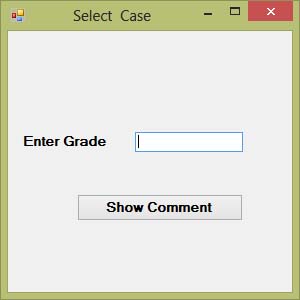
Figure 14.1: Entering a grade for the Select Case example
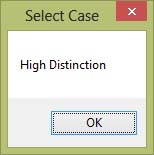
Figure 14.2: Output of the grade message example
14.3 Example 14.2
Using Case Is with Comparison Operators
In Select Case, you may use the keyword Is together with comparison operators to test numeric ranges.
Private Sub Button1_Click(ByVal sender As System.Object, ByVal e As System.EventArgs) Handles Button1.Click
    Dim mark As Single
    mark = mrk.Text

    Select Case mark
        Case Is >= 85
            MsgBox("Excellence")
        Case Is >= 70
            MsgBox("Good")
        Case Is >= 60
            MsgBox("Above Average")
        Case Is >= 50
            MsgBox("Average")
        Case Else
            MsgBox("Need to work harder")
    End Select
End Sub
In this example, the mark is tested from top to bottom. As soon as one condition matches, Visual Basic executes that case and stops checking the rest.
14.3 Example 14.3
Using Range Values in Select Case
Example 14.2 can also be written using numeric ranges, which often makes the logic easier to read:
Private Sub Button1_Click(ByVal sender As System.Object, ByVal e As System.EventArgs) Handles Button1.Click
    Dim mark As Single
    mark = TextBox1.Text

    Select Case mark
        Case 0 To 49
            MsgBox("Need to work harder")
        Case 50 To 59
            MsgBox("Average")
        Case 60 To 69
            MsgBox("Above Average")
        Case 70 To 84
            MsgBox("Good")
        Case 85 To 100
            MsgBox("Excellence")
        Case Else
            MsgBox("Wrong entry, please re-enter the mark")
    End Select
End Sub
This form is very useful for classifying numbers into clear ranges such as marks, ages, prices, or categories.
14.4 Example 14.4
Assigning Letter Grades with Select Case
Grades in schools are often represented by letters such as A, B, C, D, or E. The following program takes a mark entered by the user and assigns a letter grade.
Private Sub Button1_Click(ByVal sender As System.Object, ByVal e As System.EventArgs) Handles Button1.Click
    Dim mark As Single
    mark = TextBox1.Text

    Select Case mark
        Case 0 To 49
            LblGrade.Text = "E"
        Case 50 To 59
            LblGrade.Text = "D"
        Case 60 To 69
            LblGrade.Text = "C"
        Case 70 To 79
            LblGrade.Text = "B"
        Case 80 To 100
            LblGrade.Text = "A"
        Case Else
            LblGrade.Text = "Error, please re-enter the mark"
    End Select
End Sub
This is a practical example of how Select Case can simplify classification tasks.
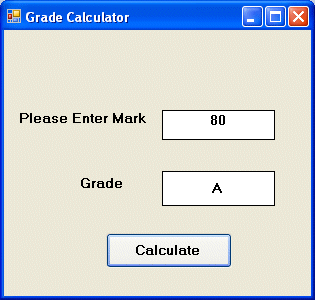
Figure 14.3: Output of the letter-grade Select Case example
14.5 Comparison
Select Case vs If...ElseIf
Both Select Case and If...ElseIf are used for decision making, but they are best suited for different situations.
- Use If...ElseIf when different expressions or more flexible logic are needed.
- Use Select Case when one expression is tested against many values or ranges.
- Select Case often makes your code easier to read and maintain.
14.6 Why This Matters
Why Select Case Is Useful
Select Case is especially powerful when one input value can lead to many different outcomes. It helps keep your code organized, readable, and easier to modify later.
Recommended Upgrade
Build on This Foundation
Continue to VB2026
After learning Select Case in VB2015, move to the newest VB2026 tutorial for a more modern VB.NET learning path.

Visual Basic Programming
Use this Top Release book to reinforce your tutorial learning with a more structured guide.
Practice
Exercise Questions
- What is the difference between Select Case and If...ElseIf?
- Write a Select Case program that displays the day type for values 1 to 7, such as Monday to Sunday.
- Why is Select Case a good choice for grading programs?