If..Then..Else
In earlier lessons, you learned how to write VB2015 code that performs calculations and manipulates text. In this lesson, you will learn how to make the program decide what to do based on conditions. This is called decision making or program flow control.
Programs become much more useful when they can check conditions and respond differently based on the result. This lesson introduces conditional operators, logical operators, and the three main forms of the If control structure.
Lesson Overview
13.1 Introduction
Controlling Program Flow
So far, most of the programs in this tutorial have executed their statements from top to bottom without making decisions. In real applications, however, the program often needs to choose between different actions depending on input from the user.
For example, a program may need to:
- Display a success message if a number is above a certain value.
- Reject input if a user does not meet age requirements.
- Assign a grade based on a mark entered by the user.
- Choose one outcome if a condition is true and another if it is false.
To do this, Visual Basic 2015 uses conditional operators, logical operators, and the If...Then...Else structure.
13.1 Conditional Operators
Comparing Values
Conditional operators compare two values and return either True or False. These operators are also called comparison operators.
| Operator | Description |
|---|---|
| = | Equal to |
| > | Greater than |
| < | Less than |
| >= | Greater than or equal to |
| <= | Less than or equal to |
| <> | Not equal to |
These operators are used whenever the program needs to decide between alternatives.
13.2 Logical Operators
Combining Conditions
In some cases, comparing one condition is not enough. You may need two or more conditions to be checked together. For this, Visual Basic 2015 provides logical operators.
These operators can be used with both numbers and strings. When strings are compared, the system follows certain rules: uppercase letters are smaller than lowercase letters, and numbers are considered smaller than letters.
| Operator | Description |
|---|---|
| And | Both sides must be true |
| Or | Either side can be true |
| Xor | Only one side can be true, but not both |
| Not | Negates a condition |
13.3 If Structures
Types of If Control Structures
There are three main types of If structures in Visual Basic 2015:
- If...Then
- If...Then...Else
- If...Then...ElseIf
Each one is suitable for a different kind of decision-making situation.
13.3(a)
If...Then Statement
This is the simplest decision structure. If the condition is true, Visual Basic performs the code inside the block. If the condition is false, nothing happens.
If condition Then
    Visual Basic 2015 expressions
End If
Example 13.1 shows a program where the user enters a number. If the number is greater than 100, the program displays a lucky prize message.
Private Sub OK_Click(sender As Object, e As EventArgs) Handles OK.Click
    Dim myNumber As Integer
    myNumber = TxtNum.Text
    If myNumber > 100 Then
        MsgBox("You win a lucky prize")
    End If
End Sub
When the entered number is greater than 100, the message appears. Otherwise, no message is shown.

Figure 13.1: Entering a number for the If...Then example
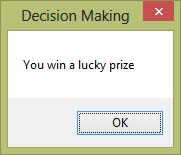
Figure 13.2: Output when the condition is true
13.3(b)
If...Then...Else Statement
Sometimes you want the program to do one thing when the condition is true and another thing when the condition is false. In that case, use the If...Then...Else structure.
If condition Then
    Visual Basic 2015 expression 1
Else
    Visual Basic 2015 expression 2
End If
Example 13.2 modifies the earlier lucky prize example so that the user always receives feedback.
Private Sub OK_Click(sender As Object, e As EventArgs) Handles OK.Click
    Dim myNumber As Integer
    myNumber = TxtNum.Text
    If myNumber > 100 Then
        MsgBox("Congratulation! You win a lucky prize")
    Else
        MsgBox("Sorry, You did not win any prize")
    End If
End Sub
If the number is greater than 100, the congratulatory message appears. Otherwise, the program displays the alternative message.

Figure 13.3: Output of the If...Then...Else example
13.3 Example 13.3
Using the And Operator with If...Then...Else
In this example, there are two conditions. The number must be more than 100 and the age must be more than 60. Both conditions must be true for the user to win the prize.
Private Sub OK_Click(sender As Object, e As EventArgs) Handles OK.Click
    Dim myNumber, MyAge As Integer
    myNumber = TxtNum.Text
    MyAge = TxtAge.Text

    If myNumber > 100 And MyAge > 60 Then
        MsgBox("Congratulation! You win a lucky prize")
    Else
        MsgBox("Sorry, You did not win any prize")
    End If
End Sub
Since the operator is And, both conditions must be satisfied at the same time. If either one fails, the prize is not awarded.

Figure 13.4: Output of the two-condition prize example
13.3(c)
If...Then...ElseIf Statement
When there are more than two possible outcomes, using only If...Then...Else is not enough. In that situation, use the If...Then...ElseIf structure.
If condition Then
    Visual Basic 2015 expression 1
ElseIf condition Then
    Visual Basic 2015 expression 2
ElseIf condition Then
    Visual Basic 2015 expression 3
Else
    Visual Basic 2015 expression 4
End If
Example 13.4 uses this structure to assign a grade according to the mark entered by the user.
Private Sub OK_Click(sender As Object, e As EventArgs) Handles OK.Click
    Dim Mark As Integer
    Dim Grade As String

    Mark = TxtMark.Text

    If Mark >= 80 And Mark <= 100 Then
        Grade = "A"

    ElseIf Mark >= 60 And Mark < 80 Then
        Grade = "B"

    ElseIf Mark >= 40 And Mark < 60 Then
        Grade = "C"

    ElseIf Mark >= 0 And Mark < 40 Then
        Grade = "D"

    Else
        Grade = "Out of Range"
    End If

    MsgBox("Your Grade is " & Grade)
End Sub
This type of structure is very useful for grading systems, classification tools, approval systems, and many other practical applications.
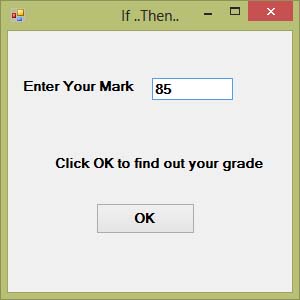
Figure 13.5: Entering a mark for the grading example

Figure 13.6: Output of the grading example
13.4 Why This Matters
Why Decision Making Is Important
Decision structures allow your program to behave intelligently. Without them, every user would get the same output no matter what input they enter. With If...Then...Else, your program can react differently to different conditions.
Recommended Upgrade
Build on This Foundation
Continue to VB2026
After learning the basics of decision making in VB2015, move to the newest VB2026 tutorial for a more modern VB.NET learning path.

Visual Basic Programming
Use this Top Release book to reinforce your tutorial learning with a more structured guide.
Practice
Exercise Questions
- What is the difference between If...Then and If...Then...Else?
- When should you use ElseIf instead of just Else?
- Write a short VB2015 program that displays “Pass” for marks of 50 or above and “Fail” otherwise.