Math Functions
In Visual Basic 2015, standard arithmetic operators are useful for basic calculations, but more advanced mathematical work often requires built-in mathematical functions. In this lesson, you will learn how to use important math functions such as Abs, Exp, Fix, Int, Log, Rnd, Round, and Sqrt.
Most mathematical functions in Visual Basic 2015 belong to the Math class, though some important functions such as Fix, Int, and Rnd are used differently.
Lesson Overview
18.1 Introduction
Why Use Math Functions?
In Visual Basic 2015, many programs require more than simple addition, subtraction, multiplication, and division. You may need to calculate absolute values, powers, logarithms, random numbers, square roots, or rounded values. Instead of writing all these operations manually, you can use built-in math functions.
These functions help you build more powerful applications such as scientific calculators, business tools, financial models, simulations, games, and measurement systems.
18.1
The Abs Function
The Abs function returns the absolute value of a number. In other words, it removes the negative sign and returns the non-negative magnitude of the number.
Math.Abs(Number)Example 18.1 uses a text box for input and a label to display the result:
Private Sub BtnComp_Click(sender As Object, e As EventArgs) Handles BtnComp.Click
    LblAbs.Text = Math.Abs(Val(TxtNum.Text))
End Sub
The Val function converts the text entered in the textbox into a numeric value before the absolute value is calculated.

Figure 18.1: Output of the Abs function
18.2
The Exp Function
The Exp function returns the exponential value of a number. For example, Exp(1) is equal to the mathematical constant e, which is approximately 2.71828182.
Math.Exp(Number)Example 18.2:
Private Sub BtnComp_Click(sender As Object, e As EventArgs) Handles BtnComp.Click
    LblExp.Text = Math.Exp(Val(TxtNum.Text))
End Sub
Again, Val is used to convert the input text to a number.

Figure 18.2: Output of the Exp function
18.3
The Fix Function
The Fix function removes the decimal part of a number. For positive numbers, it returns the largest integer smaller than the number. For negative numbers, it returns the smallest integer larger than the number.
Fix(Number)Unlike many other math functions, Fix does not belong to the Math class.
Private Sub BtnComp_Click(sender As Object, e As EventArgs) Handles BtnComp.Click
    LblFixNum1.Text = Fix(Val(TxtPosNum.Text))
    LblFixNum2.Text = Fix(Val(TxtNegNum.Text))
End Sub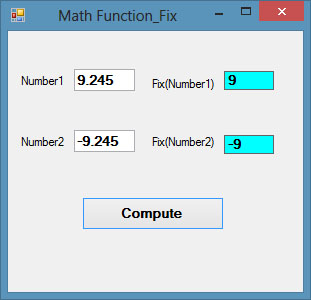
Figure 18.3: Output of the Fix function
18.4
The Int Function
The Int function also truncates the decimal portion and returns an integer. However, it always returns the largest integer that is smaller than the original number.
Int(2.4) = 2
Int(6.9) = 6
Int(-5.7) = -6
Int(-99.8) = -100
This makes Int slightly different from Fix when working with negative numbers.
18.5
The Log Function
The Log function returns the natural logarithm of a number.
Math.Log(Number)Example 18.4:
Private Sub BtnComp_Click(sender As Object, e As EventArgs) Handles BtnComp.Click
    LblLog.Text = Math.Log(Val(TxtNum.Text))
End Sub
Figure 18.4: Output of the Log function
18.6
The Rnd Function
Rnd() is a very useful function for generating random values. It returns a random number between 0 and 1. By itself, that is often not very useful, so programmers usually convert the result into integers for practical applications.
VBMath.Rnd() * NumberFor example, to simulate a six-sided dice, use:
Int(VBMath.Rnd() * 6) + 1This produces a random integer between 1 and 6.
Private Sub BtnGen_Click(sender As Object, e As EventArgs) Handles BtnGen.Click
    LblRnd.Text = Int(VBMath.Rnd() * 6) + 1
End Sub
The Rnd() function belongs to the VBMath class in Visual Basic 2015.

Figure 18.5: Output of the Rnd function used as a dice generator
18.7
The Round Function
The Round function rounds a number to a specified number of decimal places.
Math.Round(Number, m)This means the number will be rounded to m decimal places. For example:
Math.Round(7.2567, 2) = 7.26Example 18.6:
Private Sub Button1_Click(sender As Object, e As EventArgs) Handles Button1.Click
    Label1.Text = Math.Round(Val(TextBox1.Text), 2)
End Sub
Figure 18.6: Output of the Round function
18.8
The Sqrt Function
The Sqrt function returns the square root of a number.
Math.Sqrt(Number)Example 18.7:
Private Sub Button4_Click(sender As Object, e As EventArgs) Handles Button4.Click
    MsgBox(Math.Sqrt(400))
End Sub
The result of Math.Sqrt(400) is 20.
18.9
Why These Functions Matter
Built-in math functions save time and make your programs more accurate and powerful. Once you understand how to use them, you can create better calculators, simulations, business tools, educational apps, and scientific programs.
Recommended Upgrade
Build on This Foundation
Continue to VB2026
After learning the basics of math functions in VB2015, move to the newest VB2026 tutorial for a more modern VB.NET learning path.

Visual Basic Programming
Use this Top Release book to reinforce your tutorial learning with a more structured guide.
Practice
Exercise Questions
- What is the difference between Fix and Int for negative numbers?
- How can you use Rnd() and Int() to simulate a 10-sided dice?
- Write a short VB2015 example that rounds a user input value to 3 decimal places.