Writing the Code
In Lesson 3, you learned how to place controls on the form. In this lesson, you will learn how to make those controls actually do something by writing Visual Basic 2015 code. You will understand event-driven programming, how to open the code window, how event procedures work, and how to write simple statements that respond to user actions.
Controls by themselves are not enough. You must write code for them so that they respond to events such as clicking, loading, typing, dragging, and more.
Lesson Overview
4.1 Concept
The Concept of Event-Driven Programming
Visual Basic 2015 is an event-driven programming language. This means your code runs when a specific event happens. If you place controls on a form but do not write any code for them, those controls will appear on the screen but they will not perform useful actions.
Every control on a form has a set of events related to it. Some common examples include the Load event, Click event, DoubleClick event, keyboard events, drag-and-drop events, and many others.
- A form has its own events, such as Load.
- A button has its own events, such as Click.
- The same control can support many different events.
- Your code is usually written inside an event procedure.

Figure 4.1: Events associated with the form
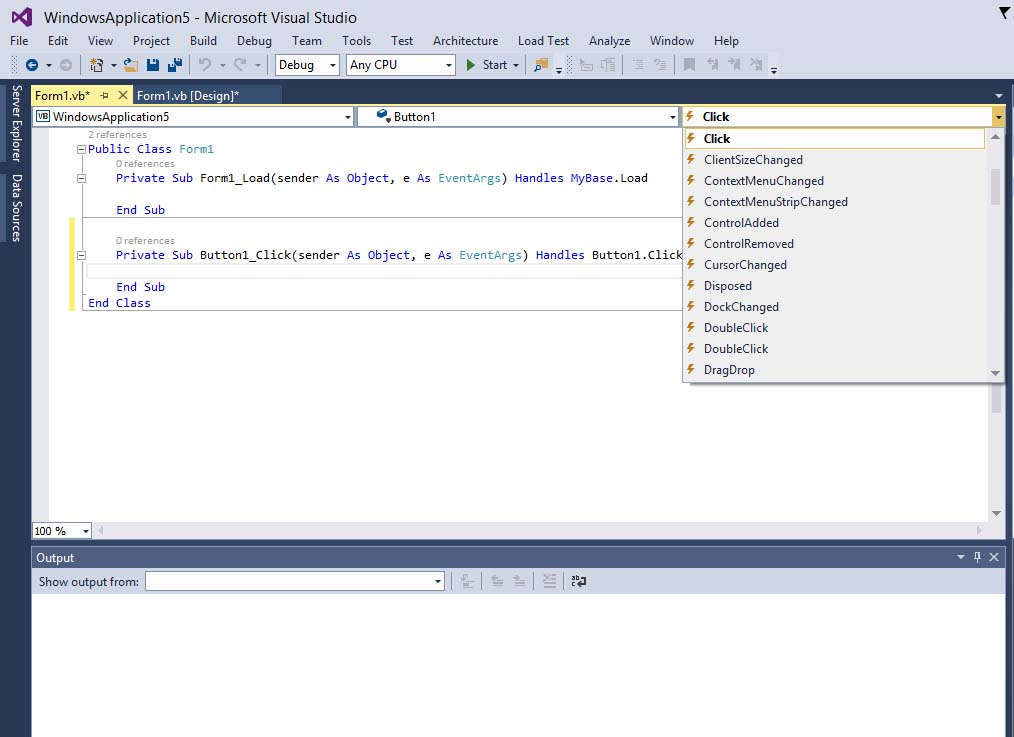
Figure 4.2: Events associated with the button control
4.2 Writing Code
Opening the Code Window and Understanding Event Procedures
To start writing code in Visual Basic 2015, double-click a control or click part of the form to enter the code window. Visual Studio will generate an event procedure for you automatically. For the form, the default event is usually the Load event.
An event procedure begins with Private Sub and ends with End Sub. Between these two lines, you place the statements you want Visual Basic to execute when that event occurs.
Private Sub Form1_Load(sender As Object, e As EventArgs) Handles MyBase.Load

End Sub
In the example above, the procedure runs when the form finishes loading. At first, it does nothing. To make it useful, you can add one or more statements inside it.
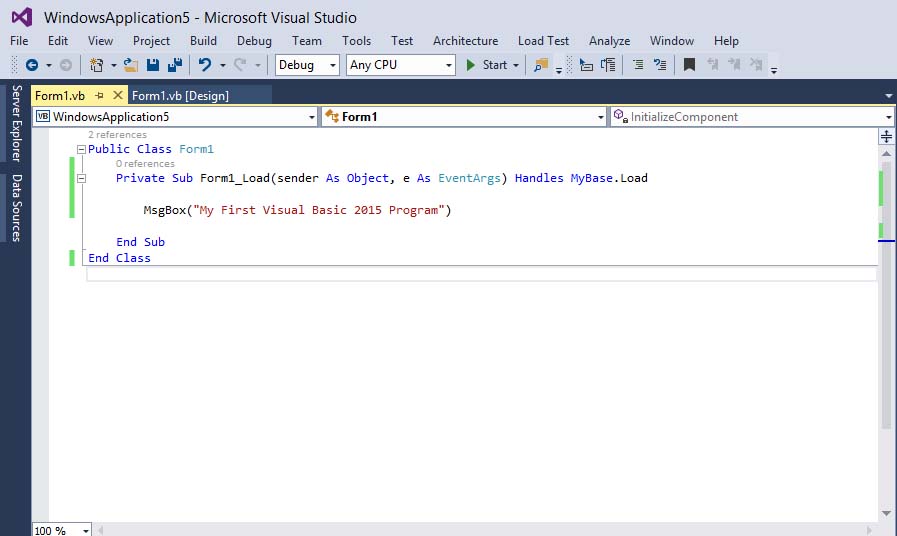
Figure 4.3: The code window
4.3 First Example
Displaying a Message with MsgBox
One of the simplest ways to test your code is to display a message box. Visual Basic provides the built-in MsgBox function for this purpose. Place the following statement inside the form load event:
Private Sub Form1_Load(sender As Object, e As EventArgs) Handles MyBase.Load
    MsgBox("Welcome to Visual Basic 2015")
End Sub
When you run the program, the message box will appear automatically as soon as the form loads. This is a simple but powerful example of event-driven programming: the Load event triggers the code, and the code then displays the message.
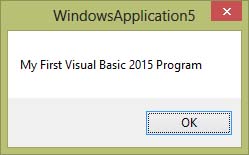
Figure 4.4: The popup message
4.4 OOP Note
Understanding the Form Class
In Visual Basic 2015, the form is actually part of object-oriented programming. When you create a Windows Forms application, the default form appears as Form1. This is not just a screen; it is an object created from a form class. That is why you often see the line Public Class Form1 above your event procedures.
You do not need to master object-oriented programming immediately, but it is useful to know that your form and controls are objects, and those objects have properties, methods, and events.
4.5 Second Example
Using Code for Arithmetic Calculations
Besides showing text, you can also use Visual Basic code to perform calculations. In the next example, the program adds two numbers and shows the result in a message box.
Private Sub Button1_Click(sender As Object, e As EventArgs) Handles Button1.Click
    MsgBox("The answer is " & 1 + 2)
    Me.Close()
End Sub
In this example, the ampersand symbol & is used for string concatenation, which means combining text with another value. The statement Me.Close() tells the program to close the current form after the user clicks the OK button in the message box.
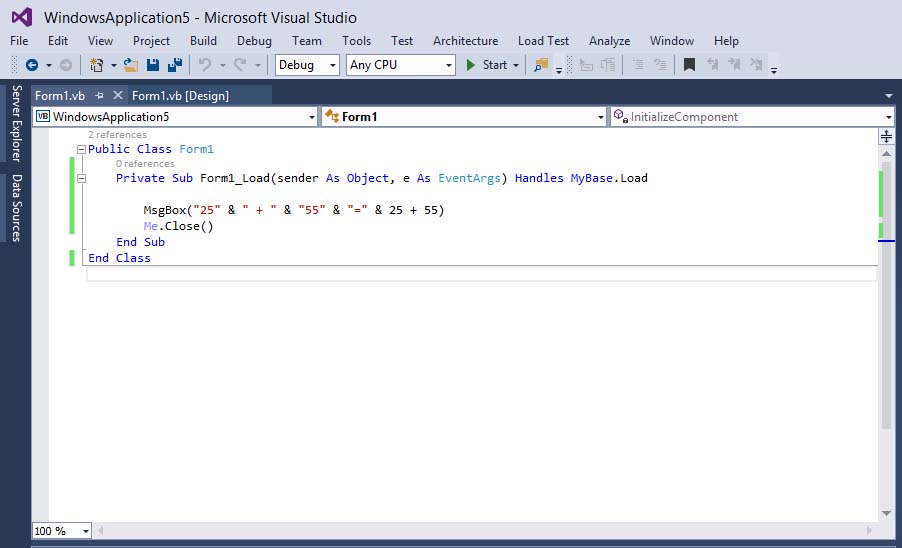
Figure 4.5: Writing the code

Figure 4.6: The output of the arithmetic example
4.6 Important Reminder
Why This Lesson Matters
Designing the form is only the first half of programming. Writing code gives life to the form and to every control you place on it. Once you understand events and event procedures, you can start creating interactive applications instead of static interfaces.
Recommended Upgrade
Build on This Foundation
Continue to VB2026
After learning the basics of event-driven coding in VB2015, move to the newest VB2026 tutorial for a more modern VB.NET learning path.

Visual Basic Programming
Use this Top Release book to reinforce your tutorial learning with a more structured guide.
Practice
Exercise Questions
- What does it mean when we say Visual Basic 2015 is an event-driven programming language?
- What is the purpose of the Form1_Load event procedure?
- Write a short VB2015 example that displays a message box when a button is clicked.