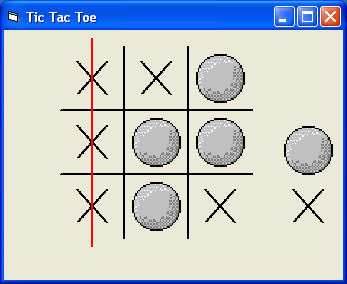
Learn how to create a classic Tic Tac Toe game with Visual Basic.
This example helps you understand arrays, event handling, game logic,
and interactive form design.
Introduction
Tic Tac Toe is one of the simplest games to build in Visual Basic.
It is excellent for learning how to manage user interaction, track game state,
and check winning conditions.
In a Visual Basic version, you typically create a 3×3 board using image controls,
labels, or buttons, then write logic to detect whether X or O has occupied a position.
Play Tic Tac Toe
Player X's turn
How the Game Works
Game Board
The board contains 9 cells arranged in a 3×3 grid.
Game State
An array stores whether each position contains X, O, or is still empty.
Winning Logic
The program checks rows, columns, and diagonals after each move.
Reset Option
The player can restart the board at any time and begin a new game.
Visual Basic Logic Example
Dim cross(8) As Boolean
Dim ball(8) As Boolean
Dim m As Integer
Dim player As Integer
Sub check_status()
If ball(0) = True And ball(1) = True And ball(2) = True Then
Line10.Visible = True
End If
End Sub
Sub check_position()
For m = 0 To 8
If Image1(m).Picture = Image2.Picture Then
ball(m) = True
Else
ball(m) = False
End If
Next
End Sub
The Visual Basic version uses arrays to keep track of which cells are occupied.
After each move, the program updates the board state and checks for a winning combination.
Equivalent VB.NET Code
The following example shows how Tic Tac Toe can be created in VB.NET using Windows Forms.
This version uses a 3×3 button array, tracks the current player, checks for winning combinations,
and allows the board to be reset for a new game.
Public Class Form1
Dim board(8) As String
Dim currentPlayer As String = "X"
Dim gameActive As Boolean = True
Private winningConditions As Integer(,) = {
{0, 1, 2},
{3, 4, 5},
{6, 7, 8},
{0, 3, 6},
{1, 4, 7},
{2, 5, 8},
{0, 4, 8},
{2, 4, 6}
}
Private buttons() As Button
Private Sub Form1_Load(sender As Object, e As EventArgs) Handles MyBase.Load
buttons = {btn0, btn1, btn2, btn3, btn4, btn5, btn6, btn7, btn8}
ResetGame()
End Sub
Private Sub Cell_Click(sender As Object, e As EventArgs) _
Handles btn0.Click, btn1.Click, btn2.Click,
btn3.Click, btn4.Click, btn5.Click,
btn6.Click, btn7.Click, btn8.Click
If Not gameActive Then Exit Sub
Dim clickedButton As Button = CType(sender, Button)
Dim index As Integer = Convert.ToInt32(clickedButton.Tag)
If board(index) <> "" Then Exit Sub
board(index) = currentPlayer
clickedButton.Text = currentPlayer
If CheckWinner() Then
lblStatus.Text = "Player " & currentPlayer & " wins!"
MessageBox.Show("Player " & currentPlayer & " wins!", "Tic Tac Toe")
gameActive = False
Exit Sub
End If
If board.All(Function(cell) cell <> "") Then
lblStatus.Text = "It's a draw!"
MessageBox.Show("It's a draw!", "Tic Tac Toe")
gameActive = False
Exit Sub
End If
If currentPlayer = "X" Then
currentPlayer = "O"
Else
currentPlayer = "X"
End If
lblStatus.Text = "Player " & currentPlayer & "'s turn"
End Sub
Private Function CheckWinner() As Boolean
For i As Integer = 0 To winningConditions.GetLength(0) - 1
Dim a As Integer = winningConditions(i, 0)
Dim b As Integer = winningConditions(i, 1)
Dim c As Integer = winningConditions(i, 2)
If board(a) <> "" AndAlso
board(a) = board(b) AndAlso
board(a) = board(c) Then
Return True
End If
Next
Return False
End Function
Private Sub btnReset_Click(sender As Object, e As EventArgs) Handles btnReset.Click
ResetGame()
End Sub
Private Sub ResetGame()
For i As Integer = 0 To 8
board(i) = ""
Next
For Each btn As Button In buttons
btn.Text = ""
Next
currentPlayer = "X"
gameActive = True
lblStatus.Text = "Player X's turn"
End Sub
End Class
In this VB.NET version, each grid square is represented by a button. The button's
Tag property stores its board position from 0 to 8. After each move,
the program checks whether a player has completed a winning row, column, or diagonal.